
Help center
How to use Cloopp
37 practical guides with numbered steps, real app screenshots, examples and fixes for common issues.
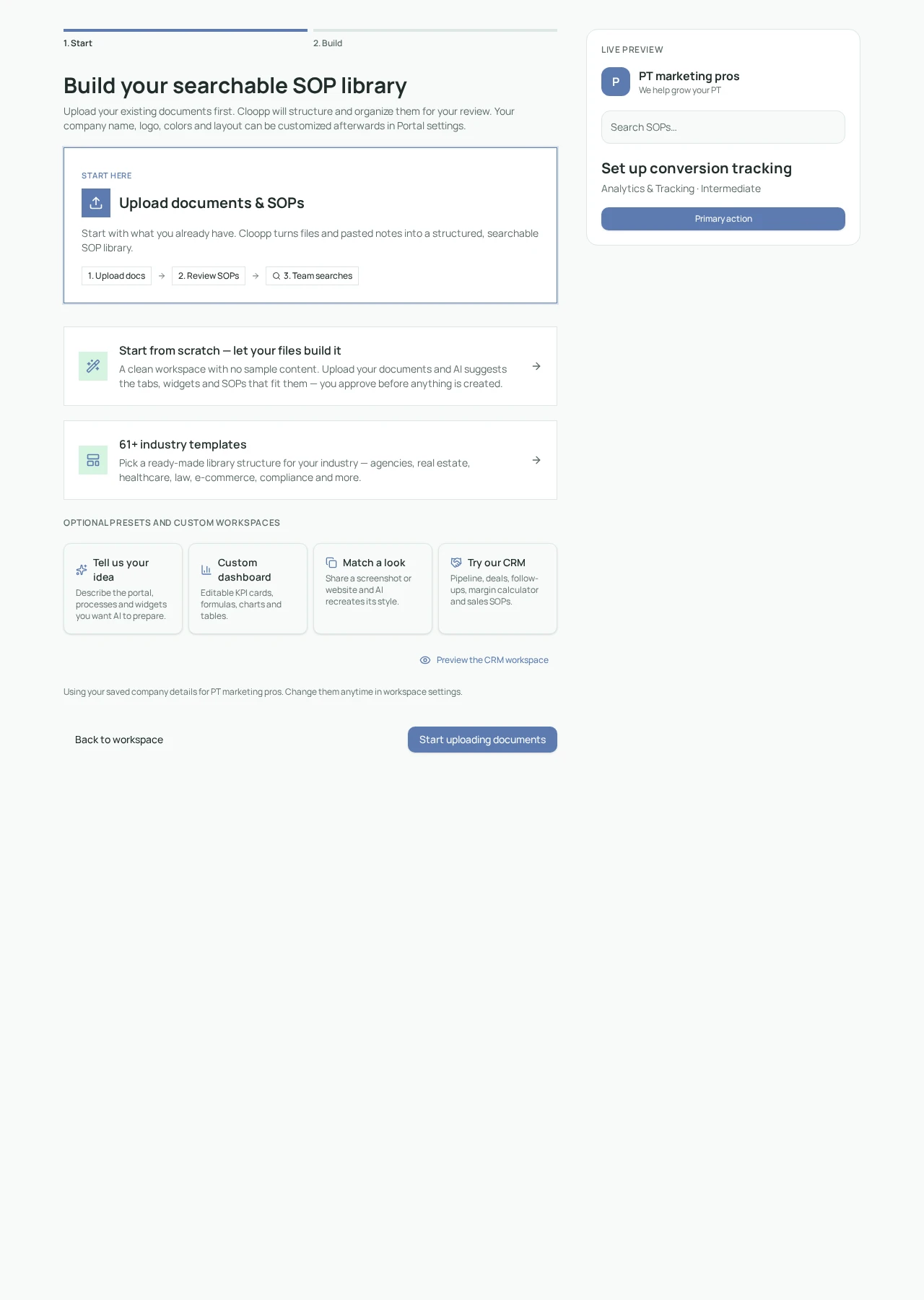
Getting started · Guide 1
Create your first workspace
Start with your documents, choose a knowledge-library structure, and approve your first SOPs.
4 steps · Example · Troubleshooting
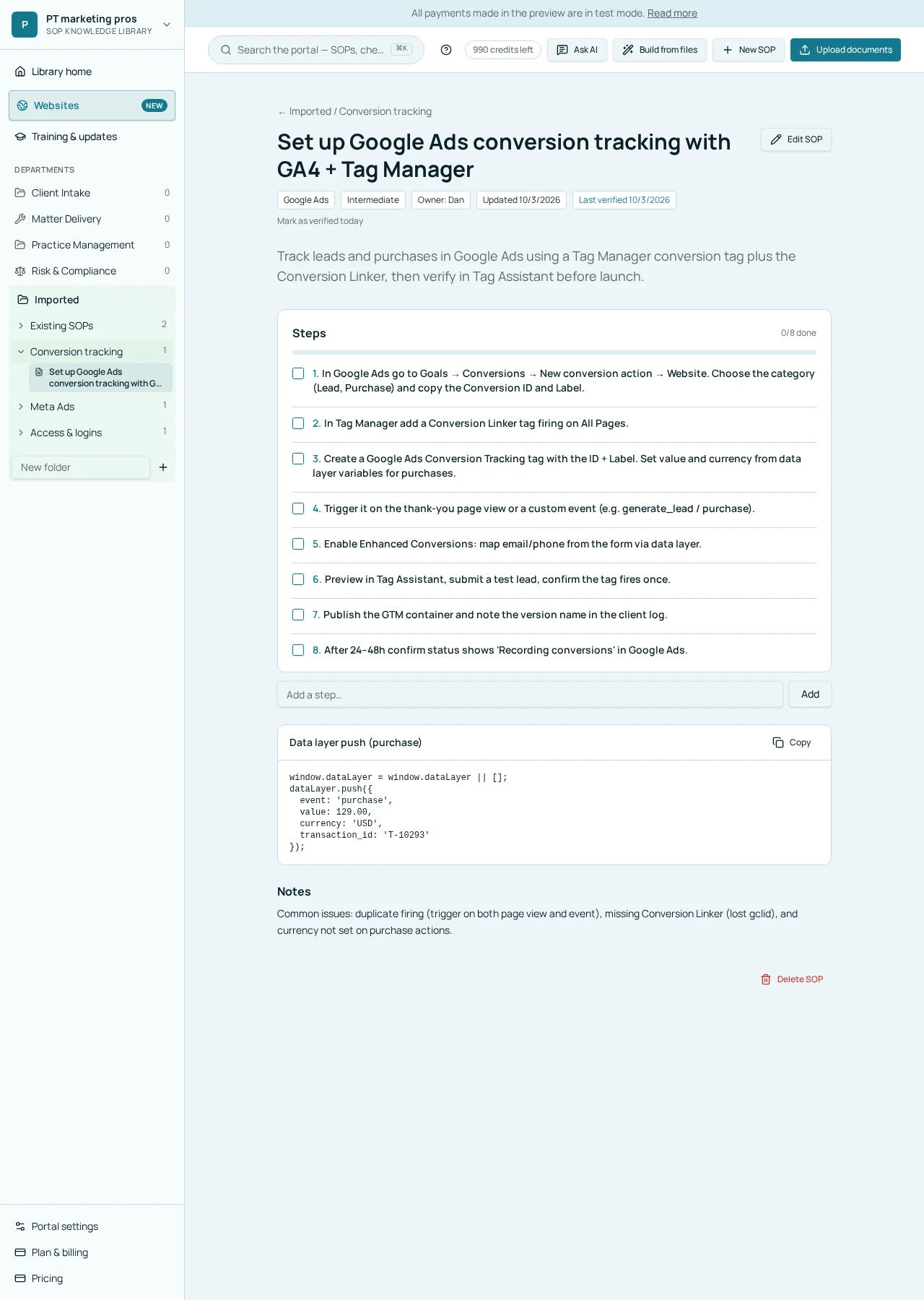
SOP library · Guide 2
Find and follow an SOP
Locate a procedure, check its prerequisites, and work through the instructions without skipping verification.
4 steps · Example · Troubleshooting
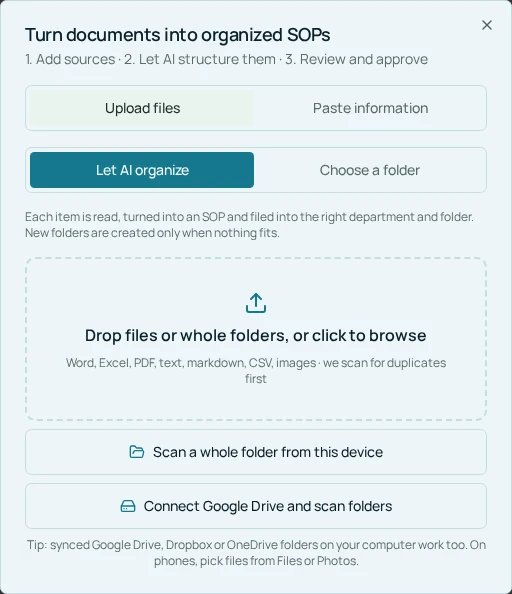
Documents & imports · Guide 3
Bulk upload documents
Scan files first, let AI structure them, and approve the finished SOP drafts into your library.
4 steps · Example · Troubleshooting
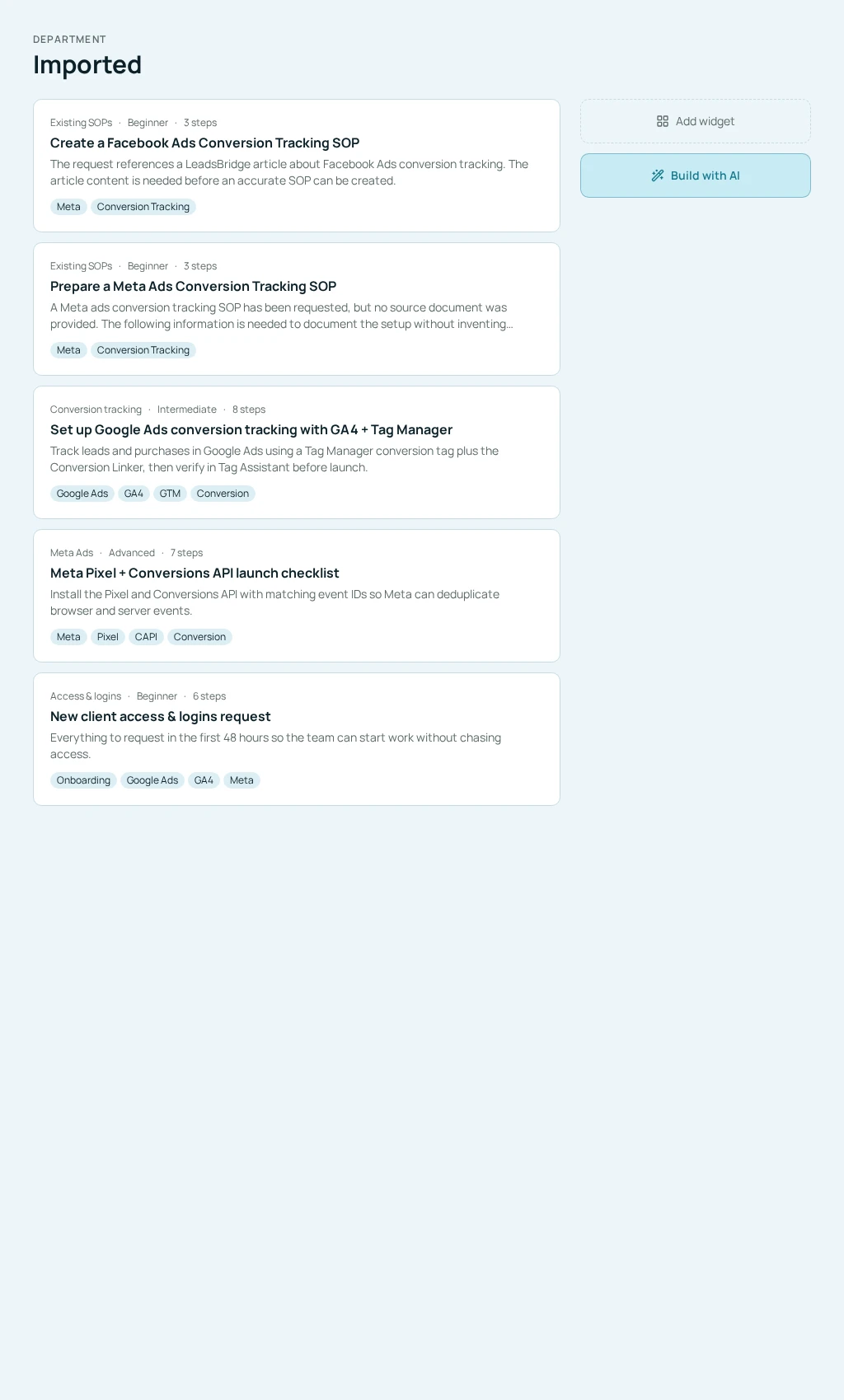
SOP library · Guide 4
Organize departments and folders
Create sensible departments and folders, then place SOPs where teammates expect to find them.
4 steps · Example · Troubleshooting
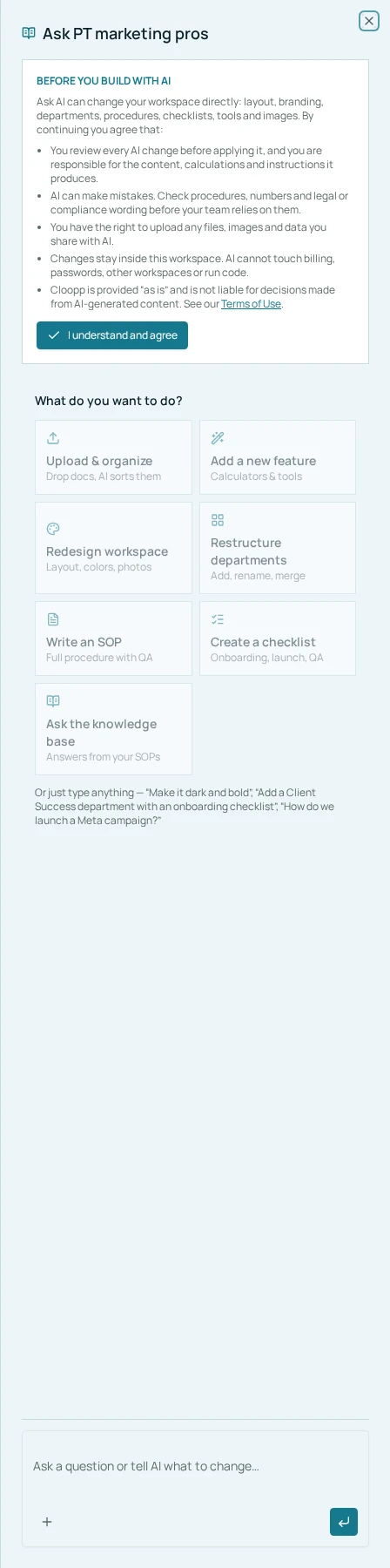
AI & widgets · Guide 5
Ask AI to edit your portal
Request a focused portal change, inspect every proposed edit, and apply or undo it deliberately.
4 steps · Example · Troubleshooting
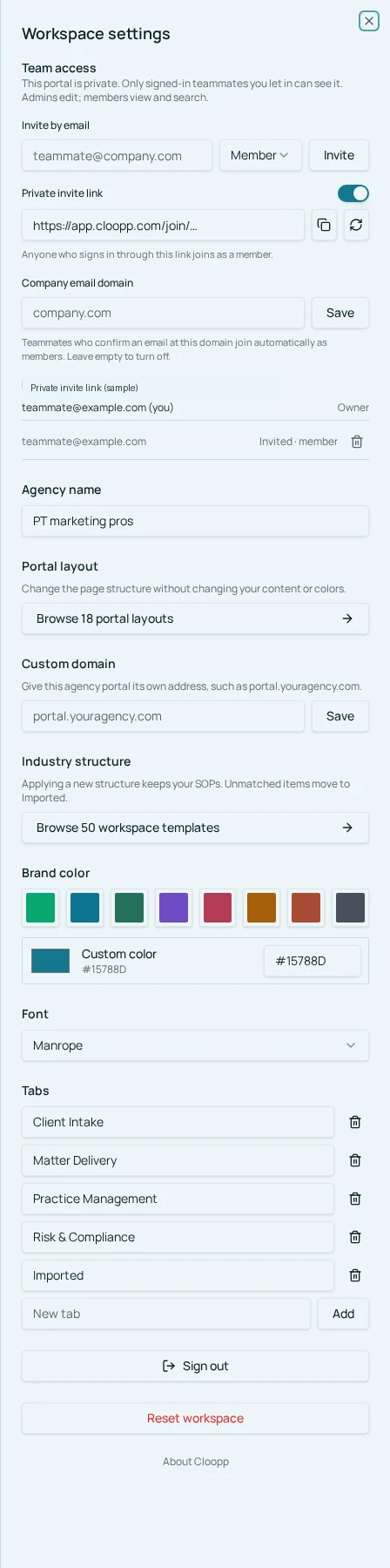
Team & settings · Guide 6
Invite your team
Choose the right access level and invite people into selected private workspaces.
4 steps · Example · Troubleshooting
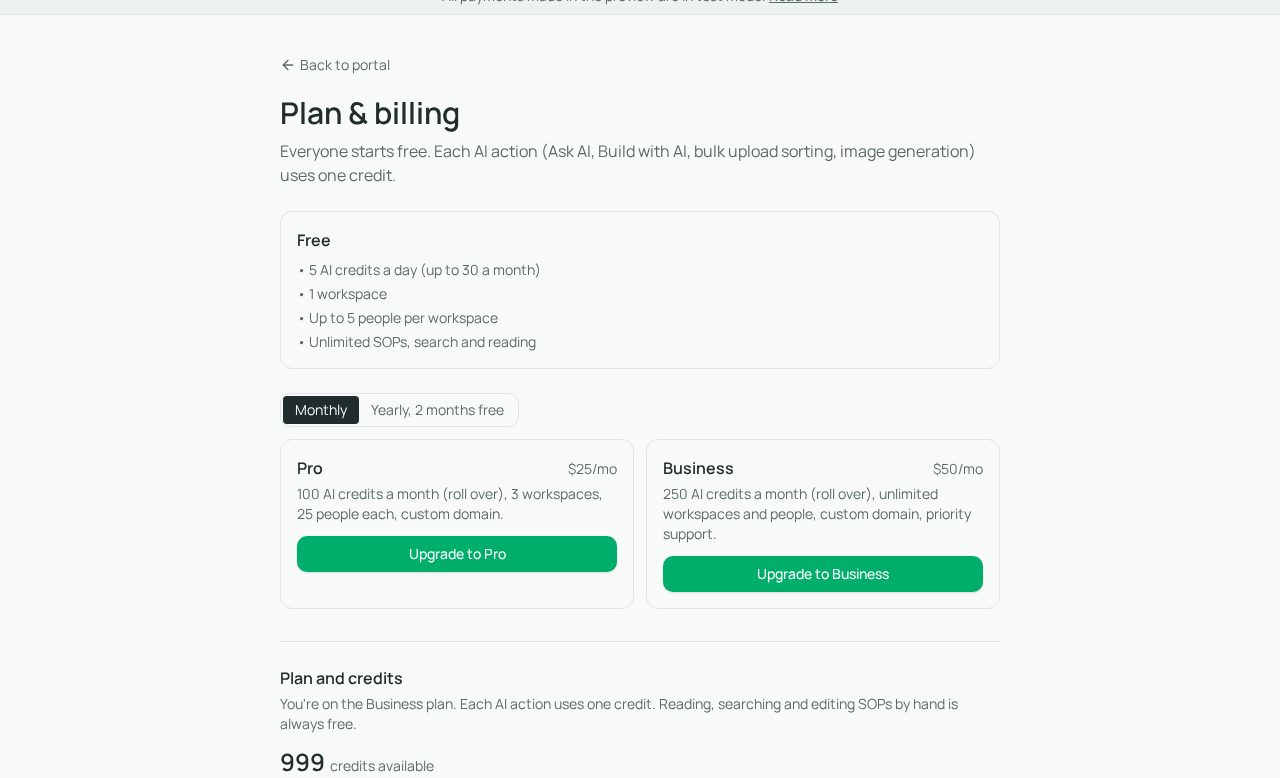
Plans & account · Guide 7
Manage your plan and credits
Compare account limits, understand AI usage, and change plans without deleting existing workspaces.
4 steps · Example · Troubleshooting
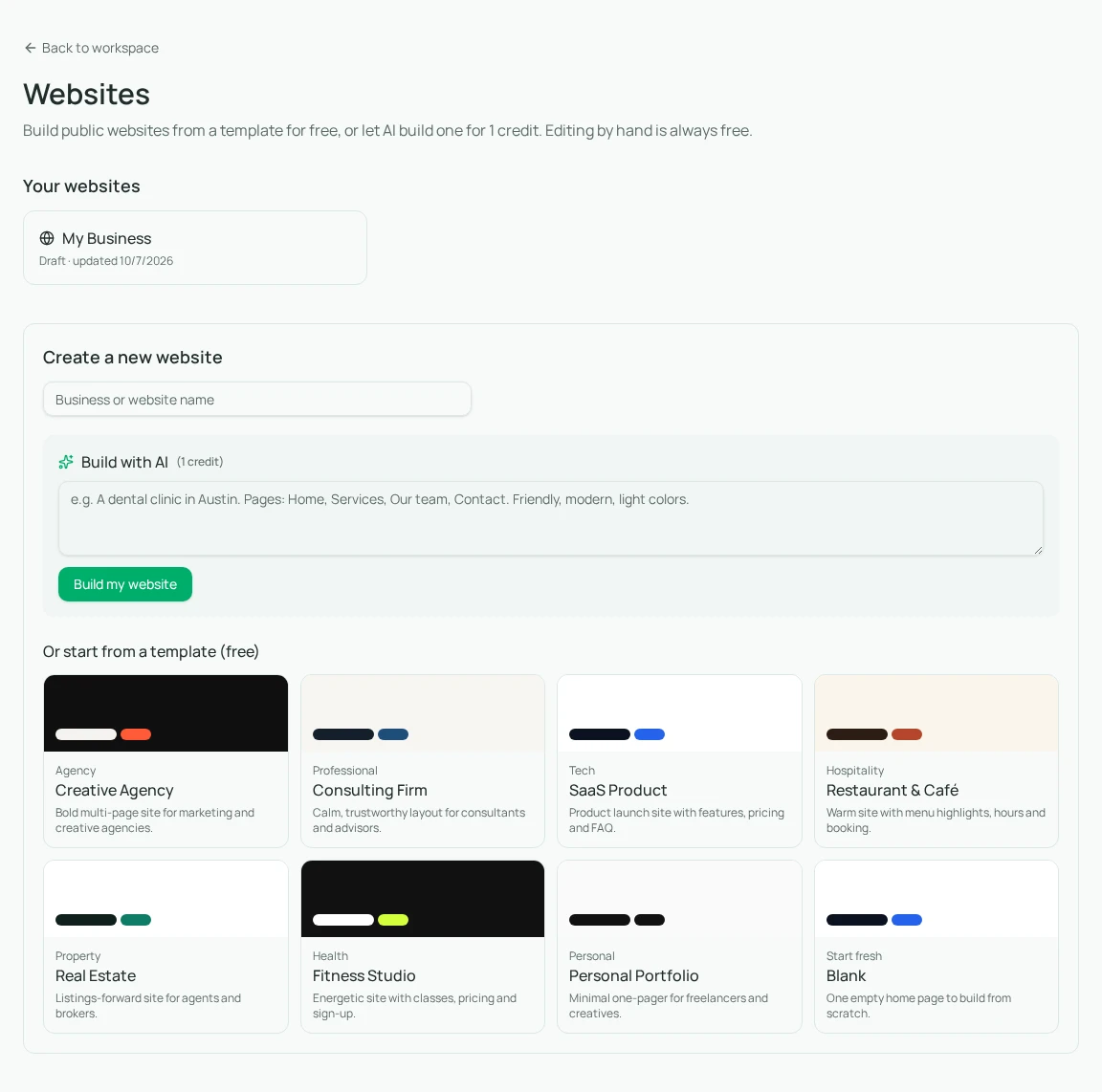
Websites · Guide 8
Build a website
Create an unpublished standalone site from a template or an AI brief, then inspect it in the editor.
4 steps · Example · Troubleshooting
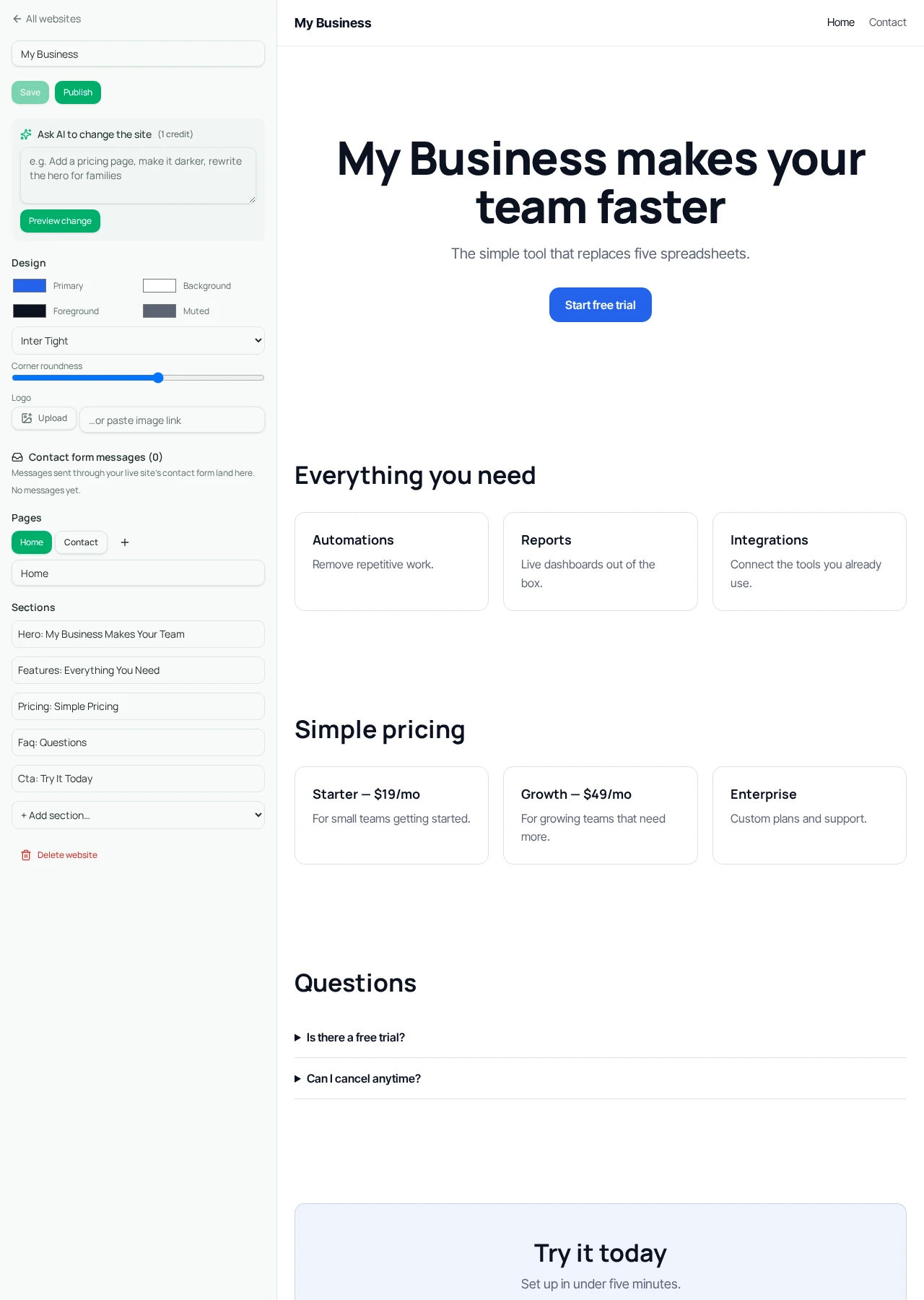
Websites · Guide 9
Edit and publish your website
Customize pages and imagery, review AI changes, and test the live site and contact form.
5 steps · Example · Troubleshooting
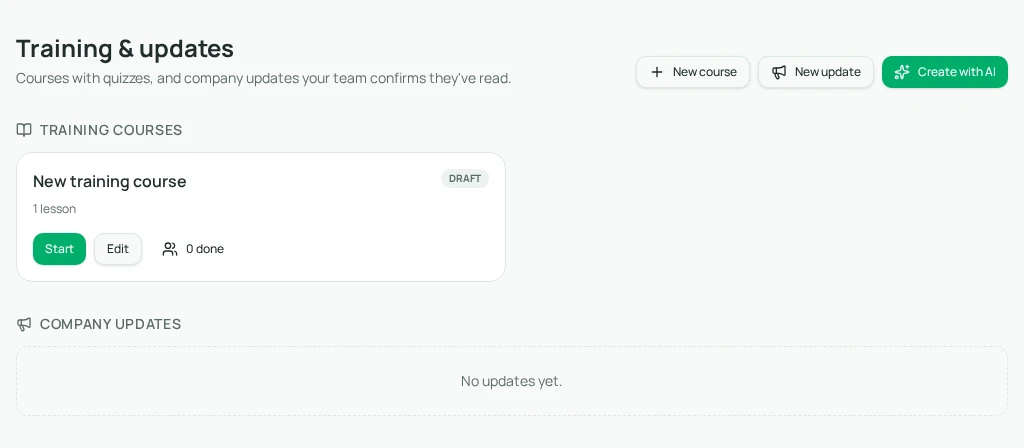
Training · Guide 10
Create training and company updates
Prepare lessons, quizzes or announcements as drafts, then publish them for your workspace team.
5 steps · Example · Troubleshooting
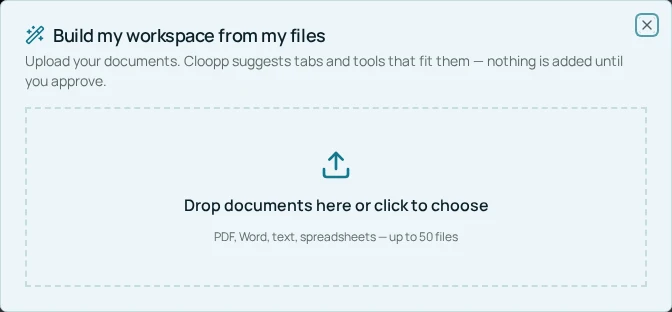
Documents & imports · Guide 11
Build a workspace from your files
Let documents suggest departments and widgets, then approve structure and SOPs in two separate stages.
4 steps · Example · Troubleshooting
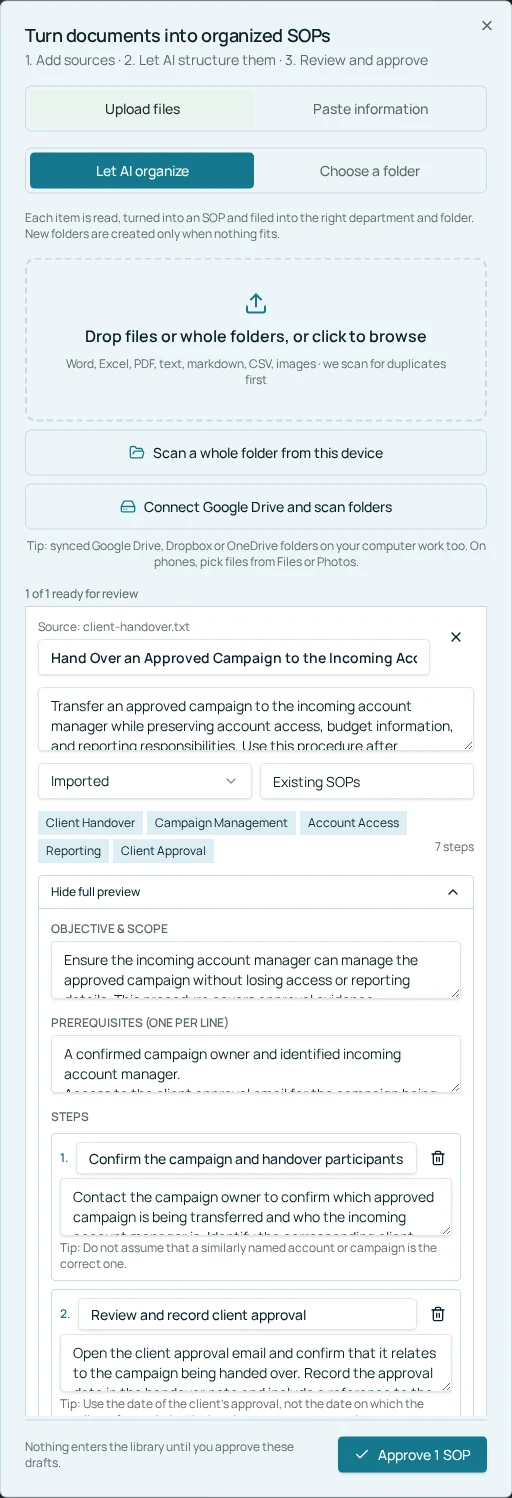
SOP library · Guide 12
Review and approve new SOPs
Check source fidelity, naming, placement and full instructions before approving imported knowledge.
4 steps · Example · Troubleshooting
SOP library · Guide 13
Keep SOPs up to date
Use verification status to review procedures that have not been checked for 90 days.
4 steps · Example · Troubleshooting
Team & settings · Guide 14
Give clients access to selected workspaces
Invite a client as a read-only member without exposing other clients’ workspace knowledge.
4 steps · Example · Troubleshooting
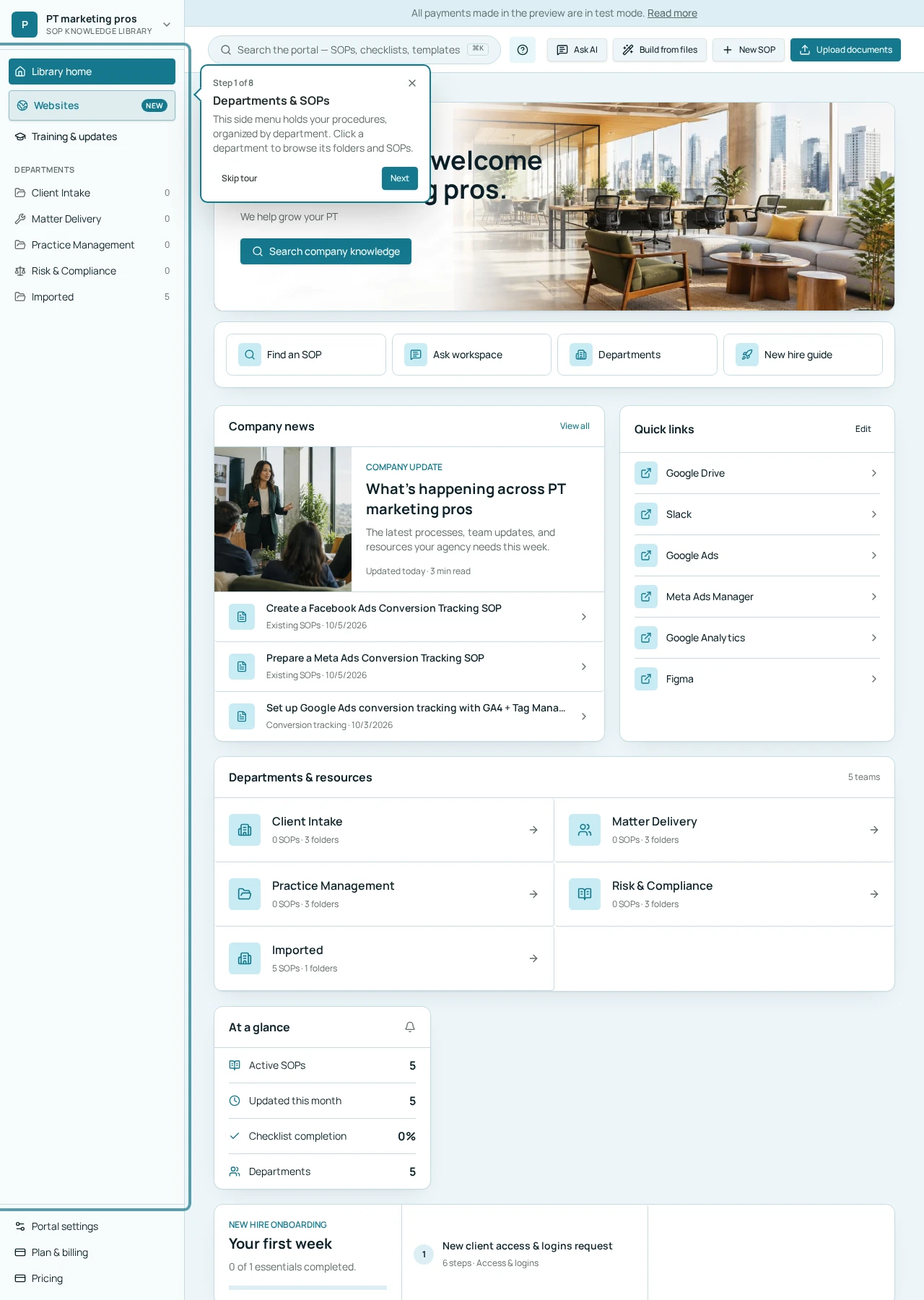
Getting started · Guide 15
Take the guided tour
Find the tour control, follow the arrow cards, and replay the introduction when you need it.
4 steps · Example · Troubleshooting
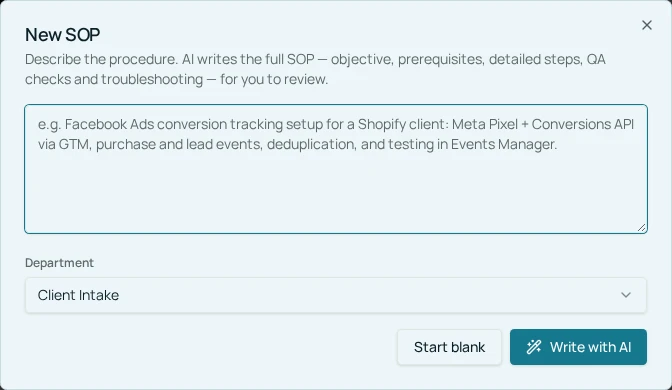
SOP library · Guide 16
Write a new SOP with AI
Give AI a concrete procedure brief, inspect its draft, and add it to the library deliberately.
4 steps · Example · Troubleshooting
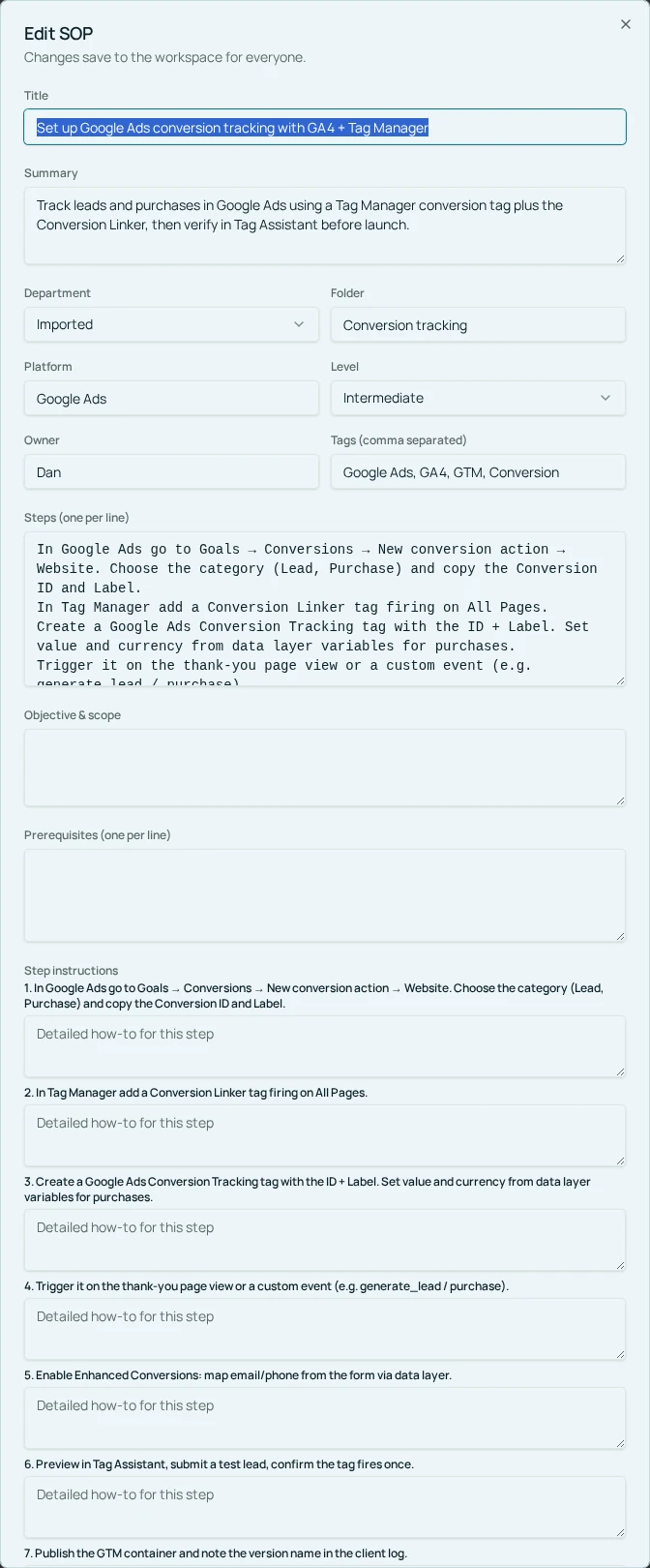
SOP library · Guide 17
Edit an existing SOP
Correct titles, ownership, placement and detailed instructions with the manual SOP editor.
4 steps · Example · Troubleshooting
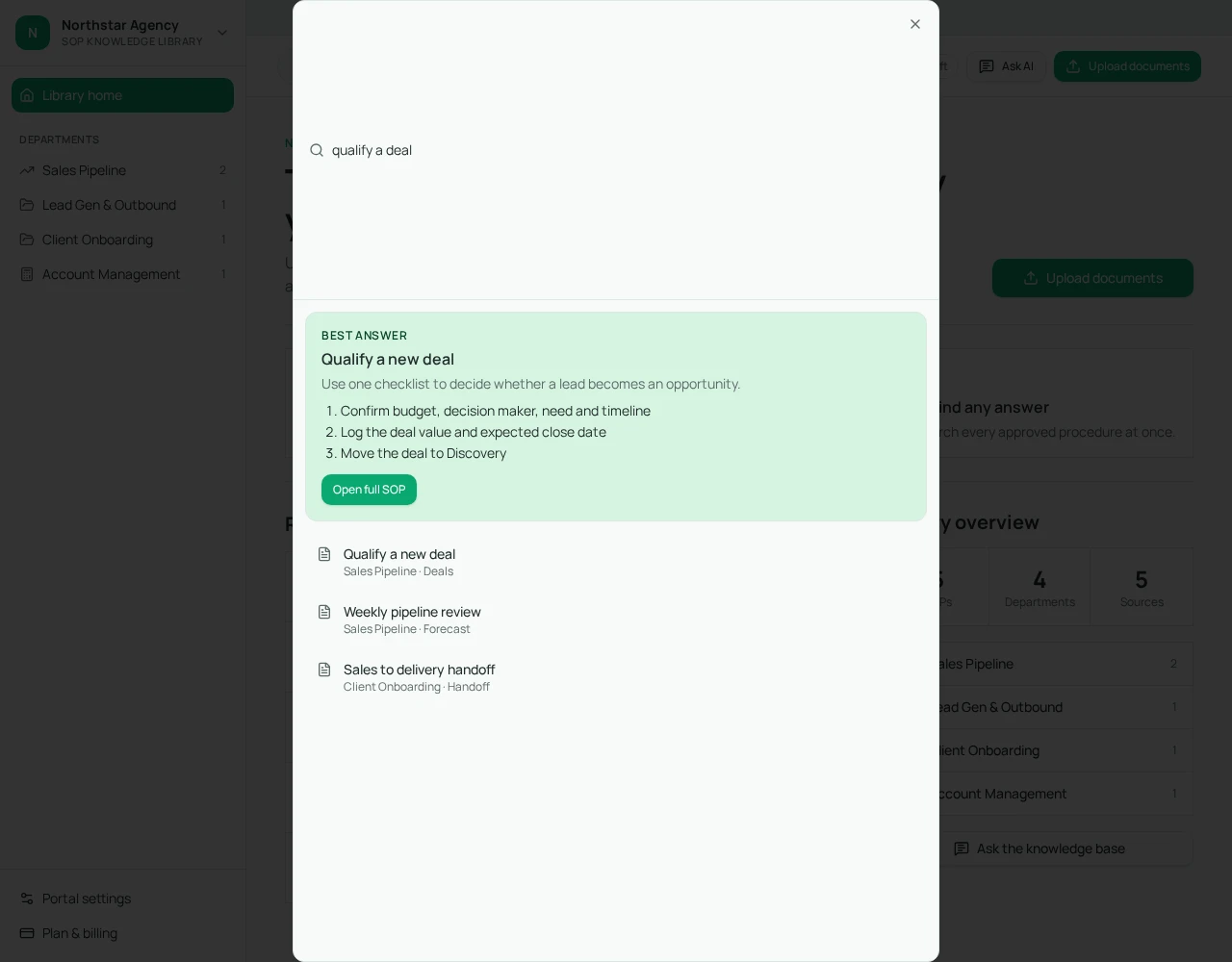
SOP library · Guide 18
Search and ask questions
Use free search for matching procedures and Ask AI for a contextual answer you can check against sources.
4 steps · Example · Troubleshooting
Documents & imports · Guide 19
Import documents from Google Drive
Connect your own Drive, select files or folders, and review the imported SOP drafts.
4 steps · Example · Troubleshooting
Documents & imports · Guide 20
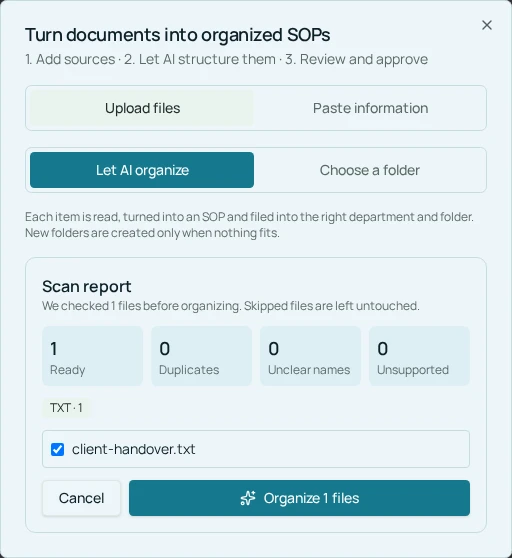
Scan a whole folder
Check a local or synced folder for duplicates and unsuitable files before spending time organizing it.
4 steps · Example · Troubleshooting
Getting started · Guide 21
Start a workspace from scratch
Create an empty workspace and let a representative document batch suggest its organization.
4 steps · Example · Troubleshooting
Team & settings · Guide 22
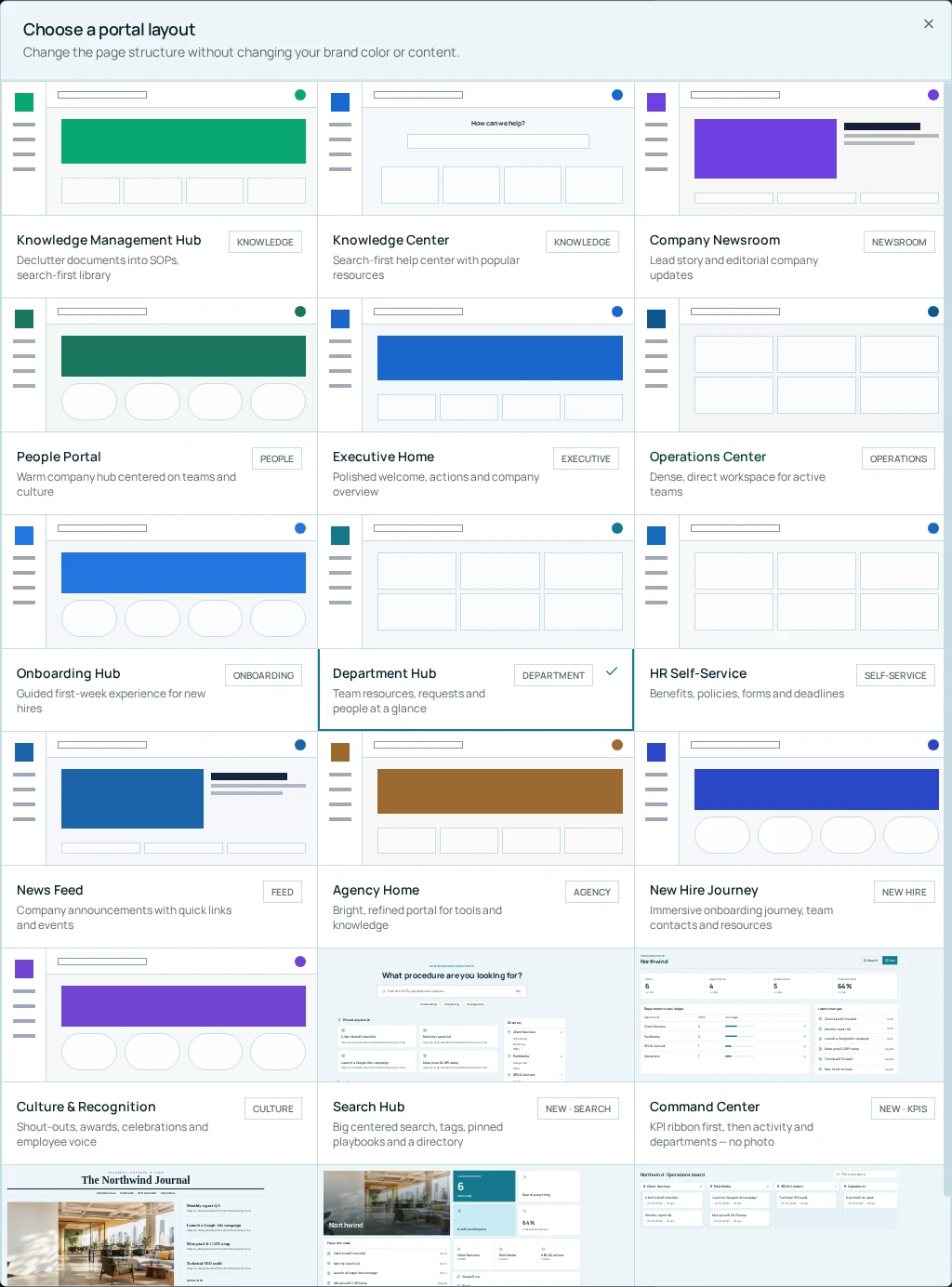
Change your portal layout
Preview another portal structure while preserving the workspace content and chosen brand color.
4 steps · Example · Troubleshooting
Team & settings · Guide 23
Brand your portal
Set workspace identity, colors and fonts, and request focused photo changes without rebuilding the portal.
4 steps · Example · Troubleshooting
AI & widgets · Guide 24
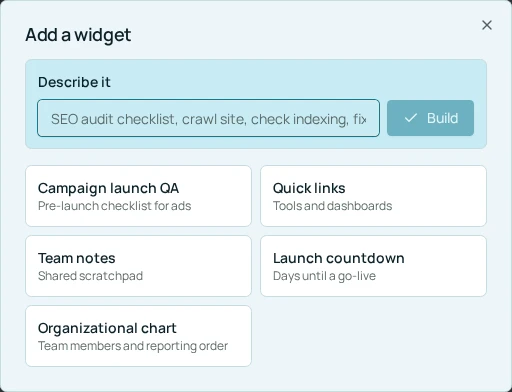
Add widgets and AI tools
Place useful department tools next to SOPs, using free standard widgets or reviewed AI-generated tools.
4 steps · Example · Troubleshooting
AI & widgets · Guide 25
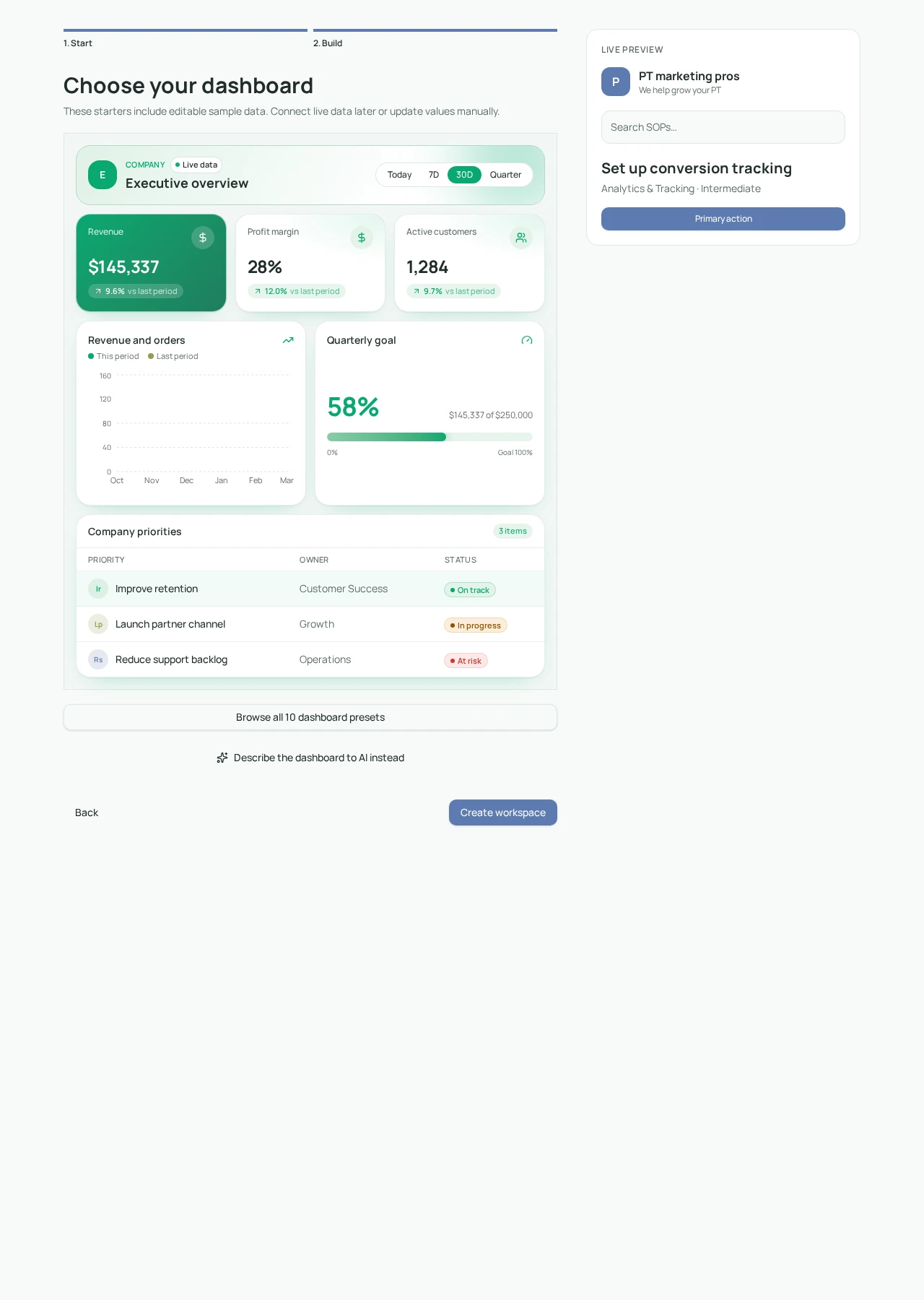
Set up a dashboard
Choose an editable dashboard starter and replace sample metrics before using it for business decisions.
4 steps · Example · Troubleshooting
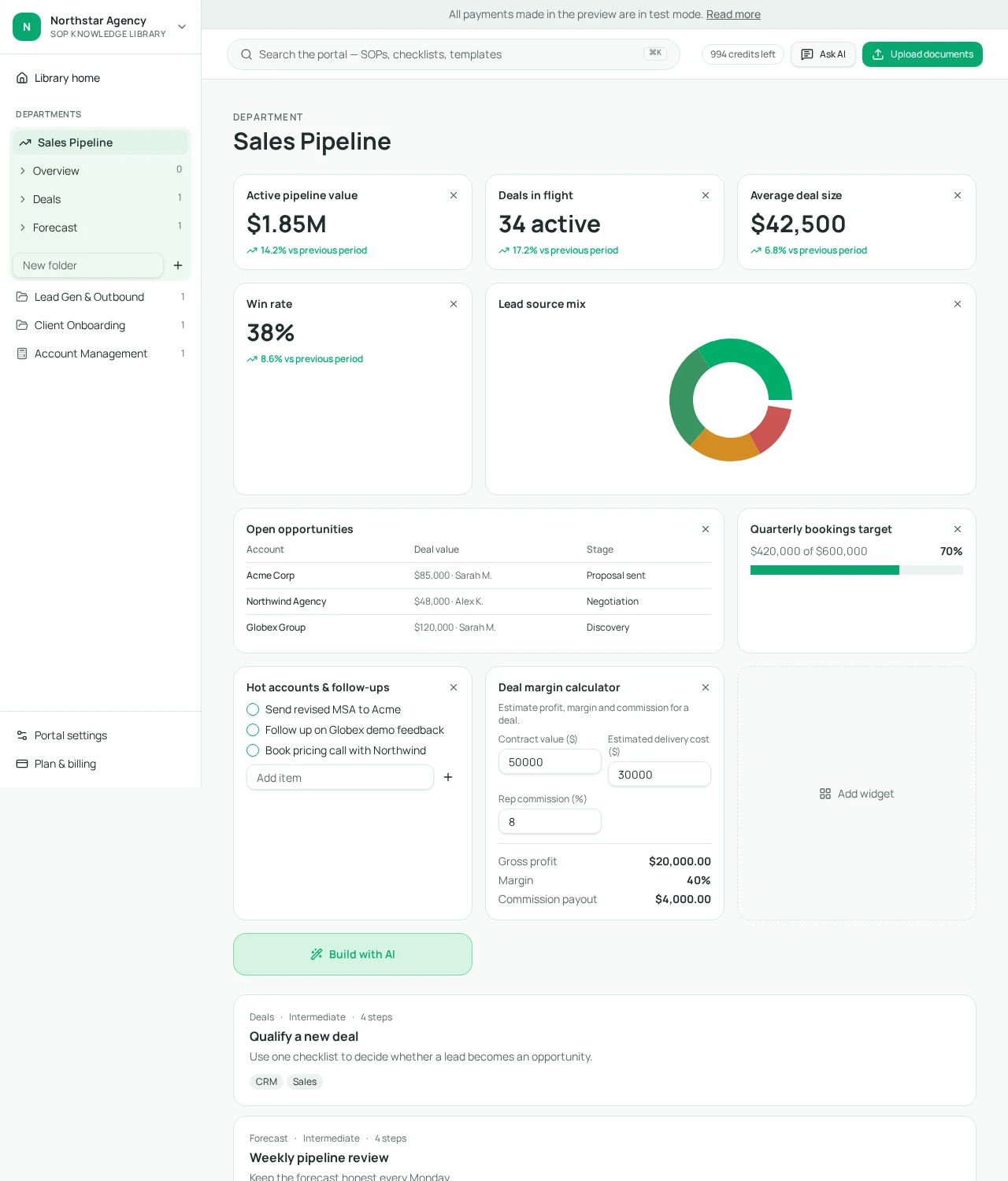
AI & widgets · Guide 26
Use the CRM template
Start with the sales workspace, then adapt its pipeline, follow-ups and tools to your actual process.
4 steps · Example · Troubleshooting
Team & settings · Guide 27
Create and switch workspaces
Keep each company or client’s information separate while switching safely between saved workspaces.
4 steps · Example · Troubleshooting
Team & settings · Guide 28
Save a custom-domain preference
Choose a portal address and understand the separate activation step before promising a live custom domain.
4 steps · Example · Troubleshooting
Plans & account · Guide 29
Buy credits as you go
Top up AI usage without changing your subscription or workspace limits.
4 steps · Example · Troubleshooting
AI & widgets · Guide 30
Use the AI assistant
Ask focused questions or request reviewed changes while keeping approved knowledge as the source of truth.
4 steps · Example · Troubleshooting
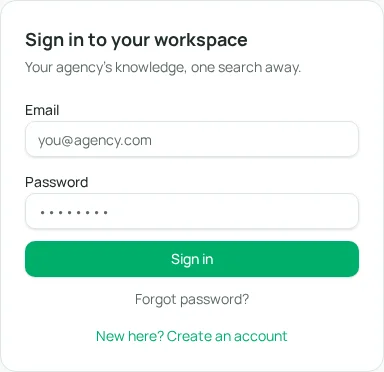
Plans & account · Guide 31
Sign in and reset your password
Access your account with email and recover a forgotten password without creating a duplicate account.
4 steps · Example · Troubleshooting
SOP library · Guide 32
Write an SOP without AI
Create a blank procedure and fill in its detailed instructions using the free manual editor.
4 steps · Example · Troubleshooting
Training · Guide 33
Take training and acknowledge updates
Complete published lessons, pass quizzes, and confirm company announcements under your own account.
4 steps · Example · Troubleshooting
AI & widgets · Guide 34
Build a calculator with AI
Describe numeric inputs and expected outputs, test the formula preview, and add the tool only after checking it.
4 steps · Example · Troubleshooting
Getting started · Guide 35
Choose and apply workspace templates
Preview industry structures and apply one intentionally without confusing structure changes with visual layouts.
4 steps · Example · Troubleshooting
Getting started · Guide 36
Design a workspace from an idea or reference
Describe a custom portal or supply a design reference, then inspect the AI proposal before creation.
4 steps · Example · Troubleshooting
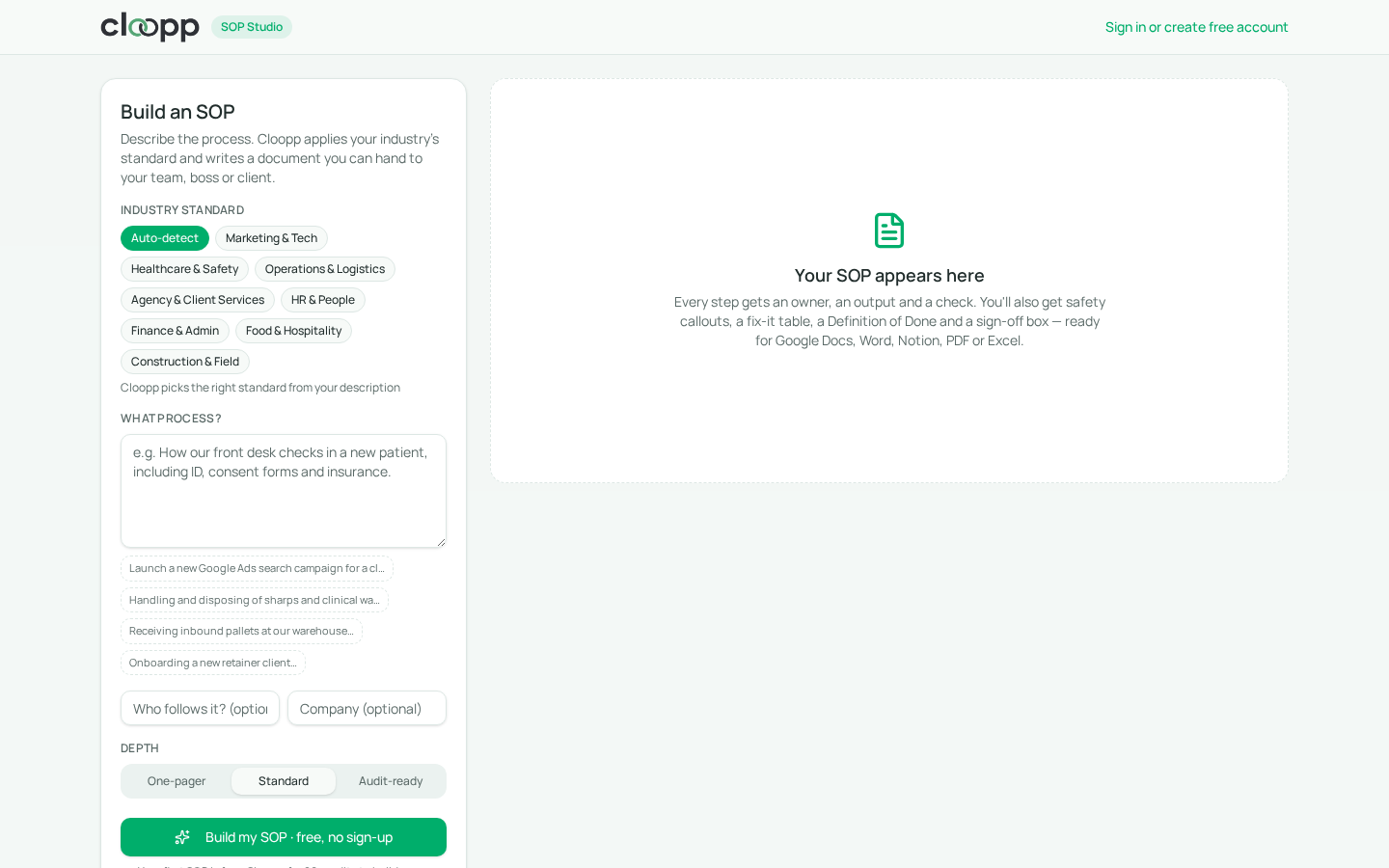
SOP Studio · Guide 37
Build and export an SOP in SOP Studio
Describe a process, choose an industry standard and depth, then edit, export and save a finished SOP.
8 steps · Example · Troubleshooting
An SOP library your team actually reads
Start free. Set up your portal in about two minutes.
Start free