AI workflows
Safer AI Edits: Narrow Requests, Preview Checks, and Undo
Use a bounded change request and compare the proposal before approval. Covers distinct website and portal undo controls without overstating version history.
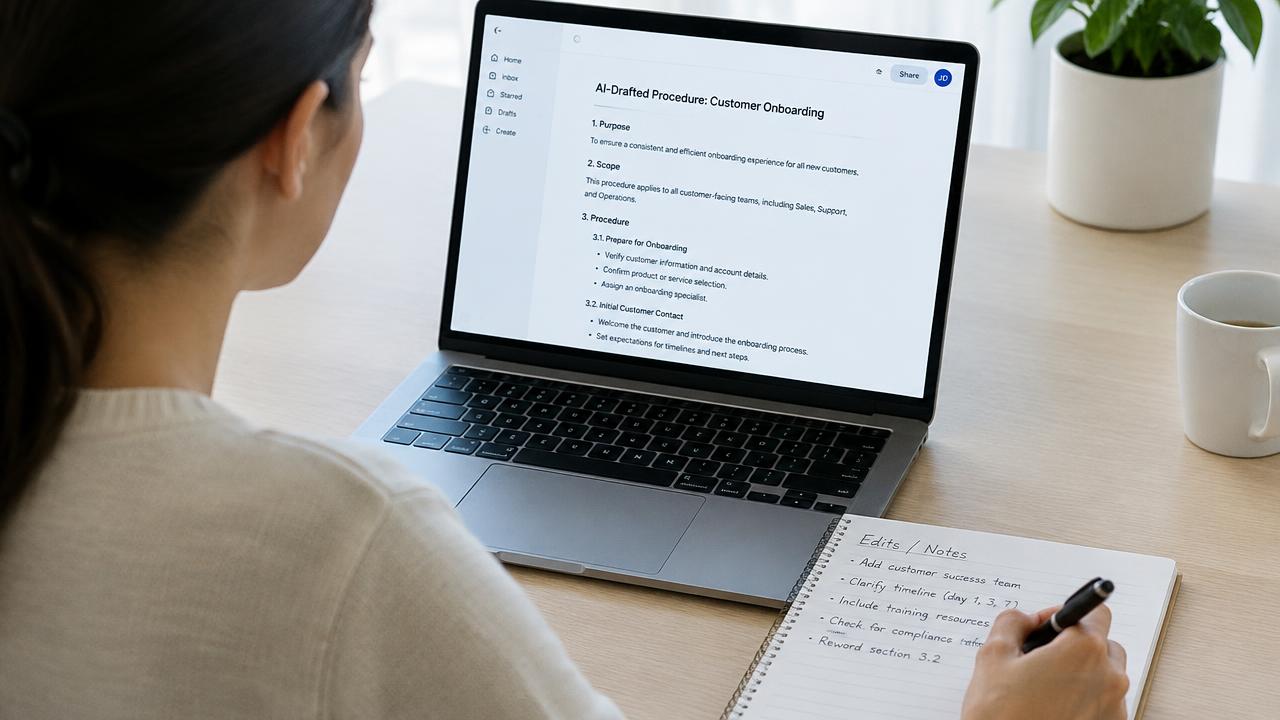
You ask AI to improve a heading and discover that the tone, page order, and contact message also changed. The problem is not always the model’s writing ability; the request and review did not define a protected boundary. A safer workflow states exactly what may change, identifies what must stay, inspects the proposed result, and uses the appropriate undo control when needed. Cloopp provides approval-first edits in its portal assistant and website editor, but their controls and rollback scopes are different.
01
Separate a question from a change request
If you want advice, say so: “Explain what is unclear; do not change the workspace.” If you want an edit, name the target and the desired outcome. A request such as “make this better” leaves the assistant deciding whether to rewrite, reorganize, or add content. That may be useful during exploration, but it is risky when adjacent work is already approved.
Record important starting facts before an edit: the current heading, intended audience, relevant links, and content that must remain unchanged. This is not a new backup feature; it is a manual review aid. Approval-first design lets you inspect a proposal, but it does not remove your responsibility to check whether the proposal matches the actual request.
02
Step 1: Write a bounded prompt
For a website, ask for one page or section and provide the approved facts. For a workspace, specify the portal element and exclude departments, SOPs, or widgets you do not want touched. Be explicit about tone and unsupported claims so the model does not invent credibility to improve the copy.
A prompt boundary is an instruction, not a mechanical guarantee that only one field will differ. Inspect the whole proposed document or workspace preview for collateral changes. If the result is broad or misunderstood, discard it and narrow the request rather than approving with the hope that undo will be available later.
Bounded prompts to adapt
Website: Rewrite only the Home hero heading and subheading for [audience], using [approved offer]. Leave other pages, sections, links, and theme unchanged. Do not invent proof.

Portal: Change only the welcome subtitle to [text]. Leave company details, departments, widgets, and SOPs unchanged.

Advice only: Explain the unclear parts of [procedure]. Do not propose or apply workspace edits.
03
Step 2: Review a website proposal before approval
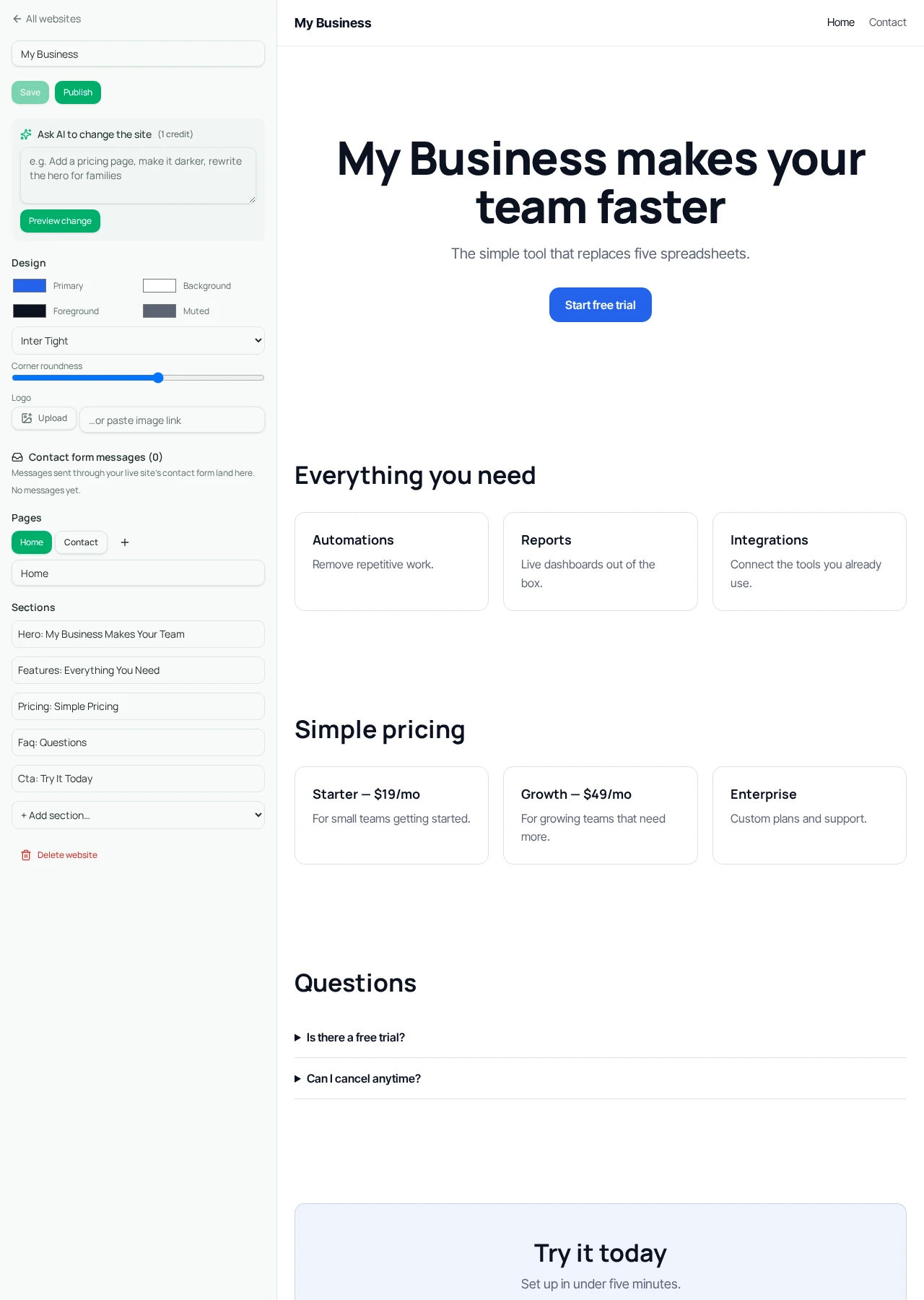
In the website editor, enter the requested change and select Preview change. The editor shows the AI version while your existing document remains the approved baseline until you select Approve. Inspect page navigation, content, imagery, links, and theme—not just the sentence you asked it to rewrite.
Select Discard if the scope is wrong. If you approve and later need to reverse the AI change, Undo AI change restores a recent in-editor snapshot. Save and inspect the public site after a deliberate rollback. Do not treat this as permanent cloud version history, a general undo for manual edits, or a guarantee that every previous session can be recovered.
- 1Write down the target and protected content before requesting the edit.
- 2Enter the bounded request in the website editor and select Preview change.
- 3Compare the intended change and inspect other pages for unintended changes.
- 4Choose Approve only for an acceptable proposal; otherwise Discard.
- 5Save the intended result and check the rendered site; use Undo AI change promptly if needed.
04
Step 3: Use the portal assistant’s own review flow
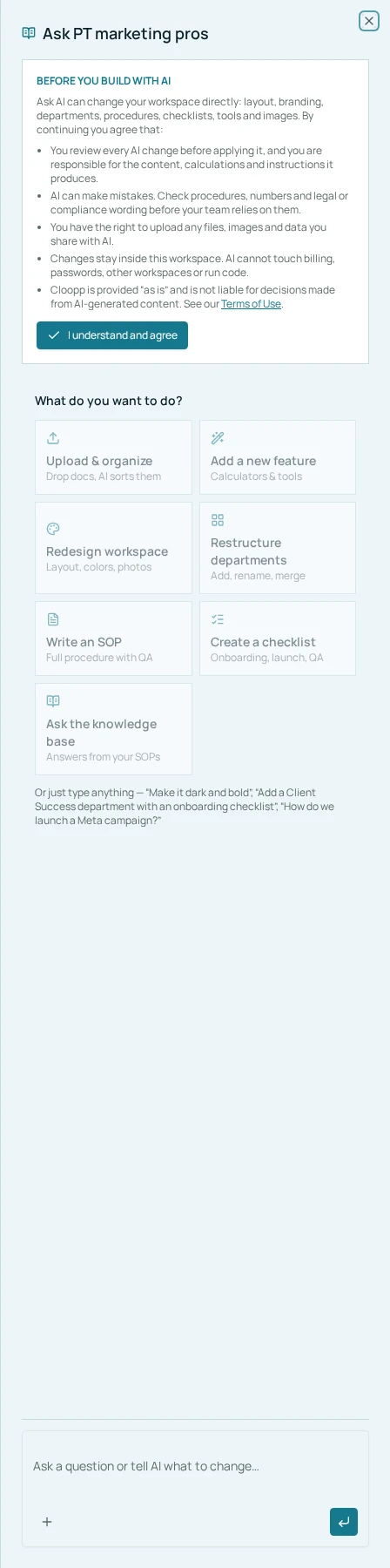
In a private workspace, Ask AI can answer questions or propose data-only portal changes. Owners and admins inspect Review changes and select Apply or Discard. Read-only members do not get the same content-editing authority. Confirm the active workspace before asking for an edit so the request targets the intended company.
The panel’s Undo last portal change applies to the last relevant portal change, not to website publication, billing, passwords, or every operation elsewhere in the app. Read its actual scope before relying on it. An SOP edit and a website AI edit are different workflows, and a shared word like “undo” should not hide those boundaries.
05
Troubleshooting and deciding when manual editing is better
If you only need an exact heading change, the manual field may be faster and more predictable than an AI request. Manual edits do not consume AI credits. Use AI where it adds value, such as restructuring supplied content, while keeping a human check for facts and scope.
If undo is unavailable after leaving or refreshing the editor, do not promise a permanent history that the current interface does not provide. Reapply approved text manually from your records or contact support with a clear description. Avoid making multiple broad changes before checking the first result, because it becomes harder to identify which change caused the problem.
If a proposal introduces unsupported integrations or claims, discard it. Cloopp’s AI outputs structured data and safe formulas rather than executing arbitrary generated code. This protects the app’s execution boundary, but content can still be wrong. Safety requires both a constrained renderer and a careful reviewer who knows the business facts.
Frequently asked questions
- Does undo reverse every action in the app?
- No. Website and portal undo controls have distinct scopes. They should not be treated as universal rollback or permanent version history.
- Do manual changes use credits?
- Standard manual content editing does not use AI credits. AI generation and edit requests do.
Put it into practice
Ask for one change and check the boundary
Name what may change, preserve approved facts, inspect the proposal, and use the matching undo control promptly if needed.
Explore free templates