
Pillar guide
From Drive Chaos to a Searchable SOP Library: A Step-by-Step Migration Guide
How to turn years of scattered Google Drive files, Notion pages and PDFs into an organized, searchable SOP library — including how to handle duplicates, outdated files and remote teams.
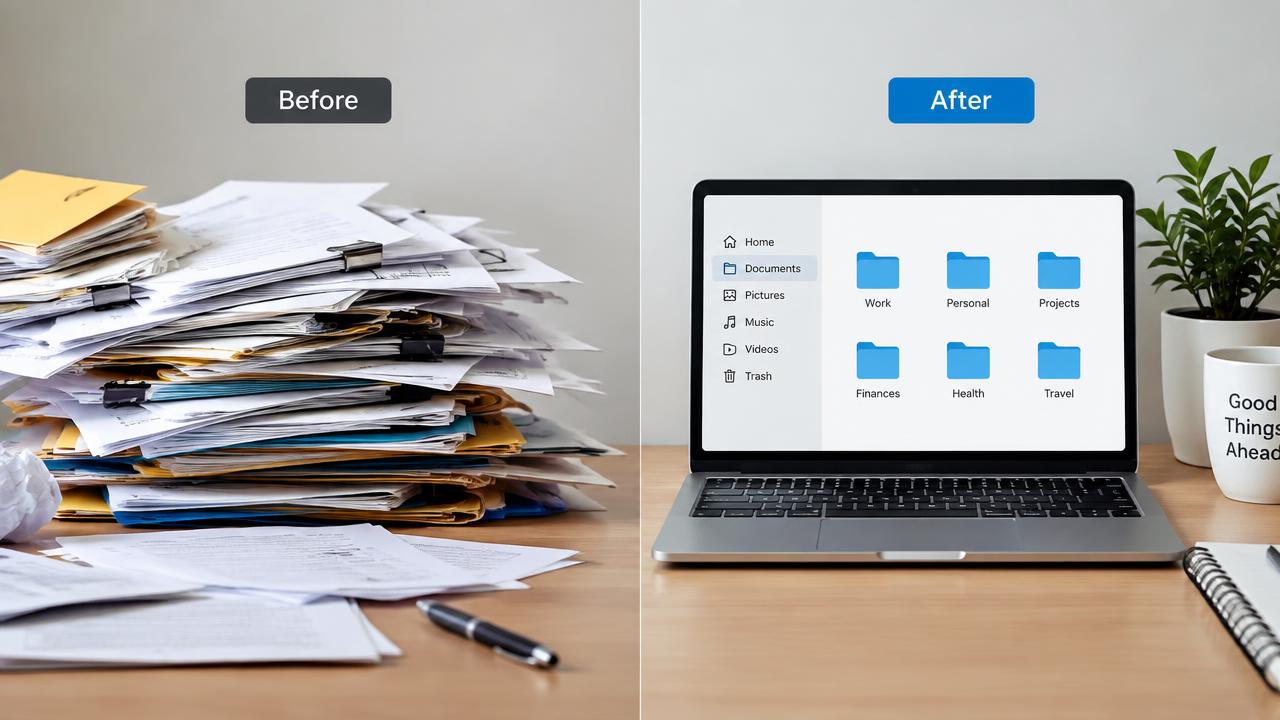
Every agency older than two years has a documentation graveyard: folders named 'Processes OLD', three copies of the onboarding checklist, and PDFs from a consultant nobody remembers hiring. The knowledge in there is real and valuable — it's just impossible to find or trust. This guide walks through a migration that takes days, not months: inventory, triage, structure, conversion and approval. It also covers the issues that derail most migrations, like duplicates, unclear file names and remote teammates who never stop using the old folder.
01
Why shared drives stop working as a knowledge base
Drive and similar tools are great at storing files. They are poor at telling you which file is current, who owns it, and whether it's still correct. Search returns every version, so people either pick the wrong one or give up and ask in Slack.
Remote and hybrid teams feel this most. Without a desk neighbour to ask, a teammate in another timezone either waits hours for an answer or guesses. Both cost money.
Before
- • Search returns 7 'onboarding' files
- • No owner, no last-reviewed date
- • Remote staff wait for answers
- • Old consultants' PDFs still linked
After
- • One approved onboarding SOP
- • Owner and verified date on every procedure
- • Answers available in any timezone
- • Originals kept, but out of the way
02
Step 1: Inventory what you actually have
Before moving anything, get a list. Export folder listings or simply gather the folders that contain process knowledge: delivery, onboarding, HR, sales, finance. Don't open files yet — just collect.
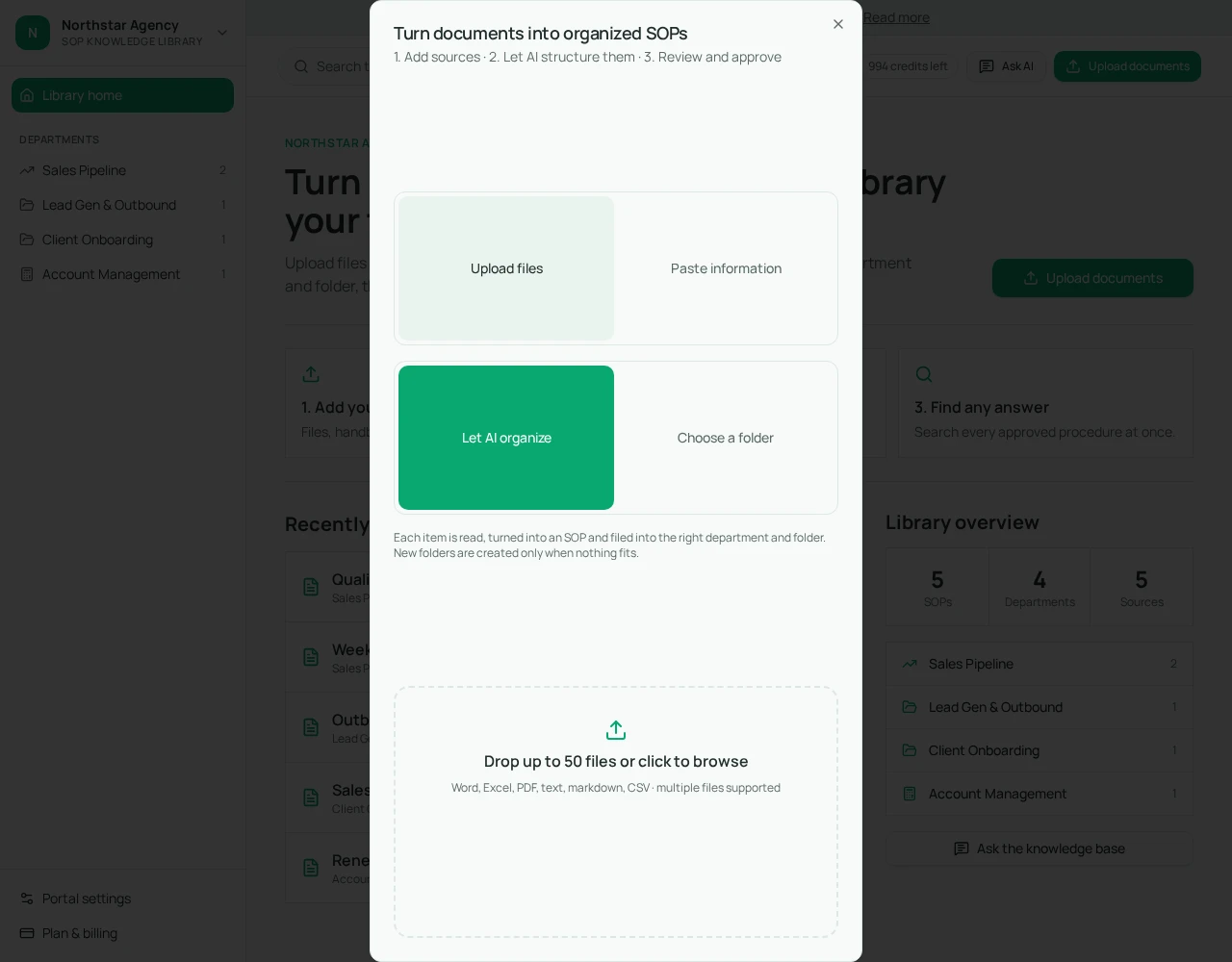
In Cloopp you can scan a local folder or connect Google Drive. The scan reports duplicates, unclear file names, unsupported file types and anything already in your library, so you see the size of the problem before committing.
03
Step 2: Triage — keep, merge, archive
Every file falls into one of three buckets. Keep: it describes a process you still run. Merge: several files describe the same process and need to become one. Archive: it's obsolete, but you don't want to delete history.
Merging is where most of the value is. Three onboarding checklists usually contain one step each that the others are missing. Combine them into a single draft and let the owner decide what stays.
- Keep: current, used, has an obvious owner.
- Merge: same process, different authors or versions.
- Archive: references tools, clients or prices you no longer use.
- Unknown: ask the team lead once, then archive if nobody claims it within a week.
04
Step 3: Design a structure people can navigate
Structure by how people look for things, not by your org chart. Most agencies do best with departments (Delivery, Client Services, Sales, Operations, People) and a handful of folders inside each.
If you are starting from an empty workspace, Cloopp's 'Build from files' option reads the documents you drop in and proposes tabs, folders and widgets. You can untick or rename anything before it is created, and undo the build afterwards.
Example structure for a 15-person agency
Client Services
  Onboarding · Reporting · Renewals · Offboarding
Delivery — SEO
  Audits · Monthly checks · Content publishing
Delivery — Web
  Discovery · Build · QA · Launch
Operations
  Access & passwords · Tools · Finance basics
People
  New hire week one · Leave · Policies
05
Step 4: Convert documents into structured SOPs
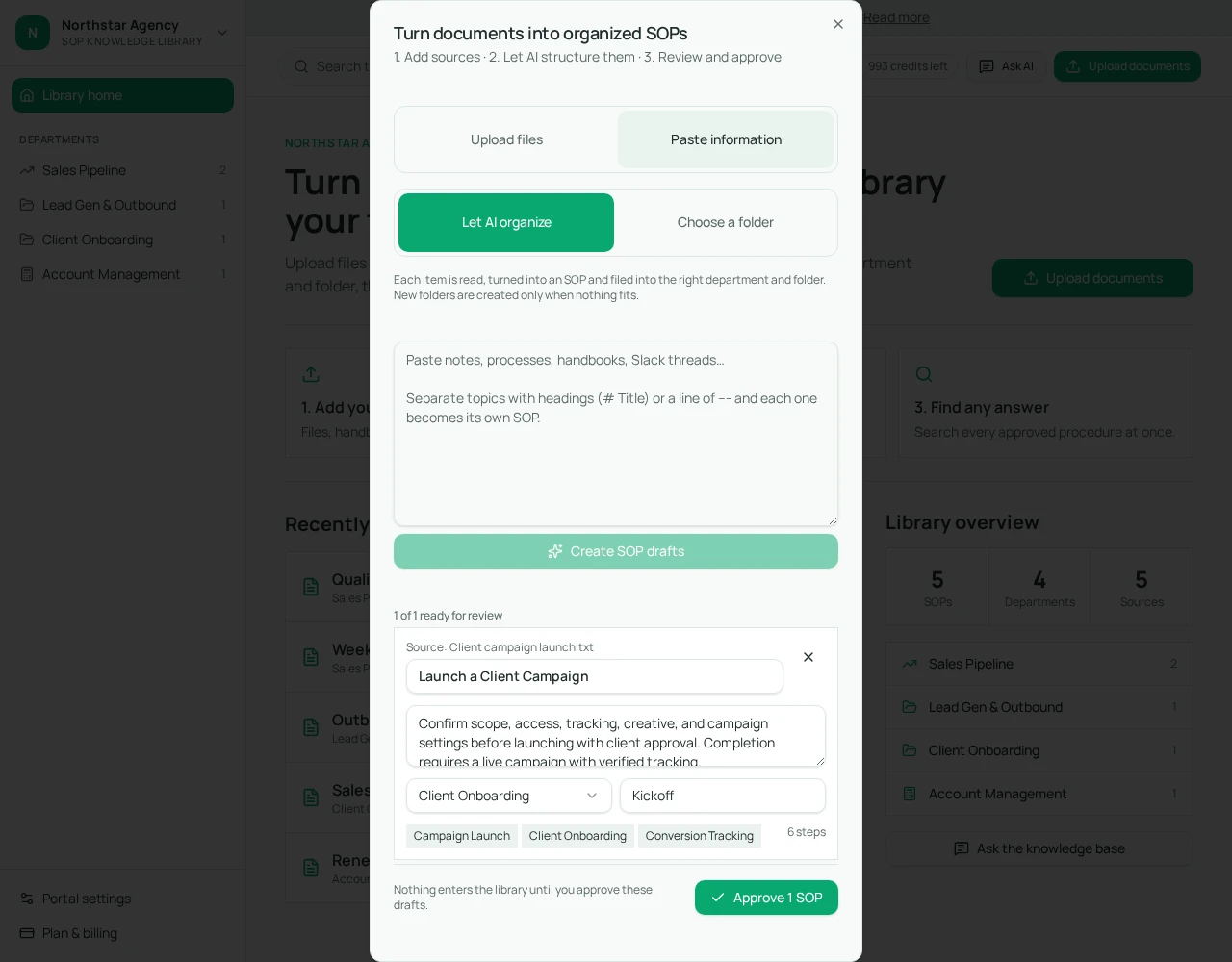
Upload the 'keep' and 'merge' files. Cloopp's AI reads each one and proposes a concise, action-oriented title, the department it belongs to, and a structured procedure. The original filename is preserved as the source.
Every draft lands in review. Open 'Preview & edit full SOP' to check objective, prerequisites, steps, verification and troubleshooting. Approve the ones that are right; edit or discard the rest. Approved SOPs enter the library together in one batch.
- 1Upload one department's files (up to 50 at a time).
- 2Review titles first — rename anything unclear.
- 3Open each draft and remove any step your team doesn't actually do.
- 4Approve in one batch so the department goes live together.
06
Step 5: Make search the default habit
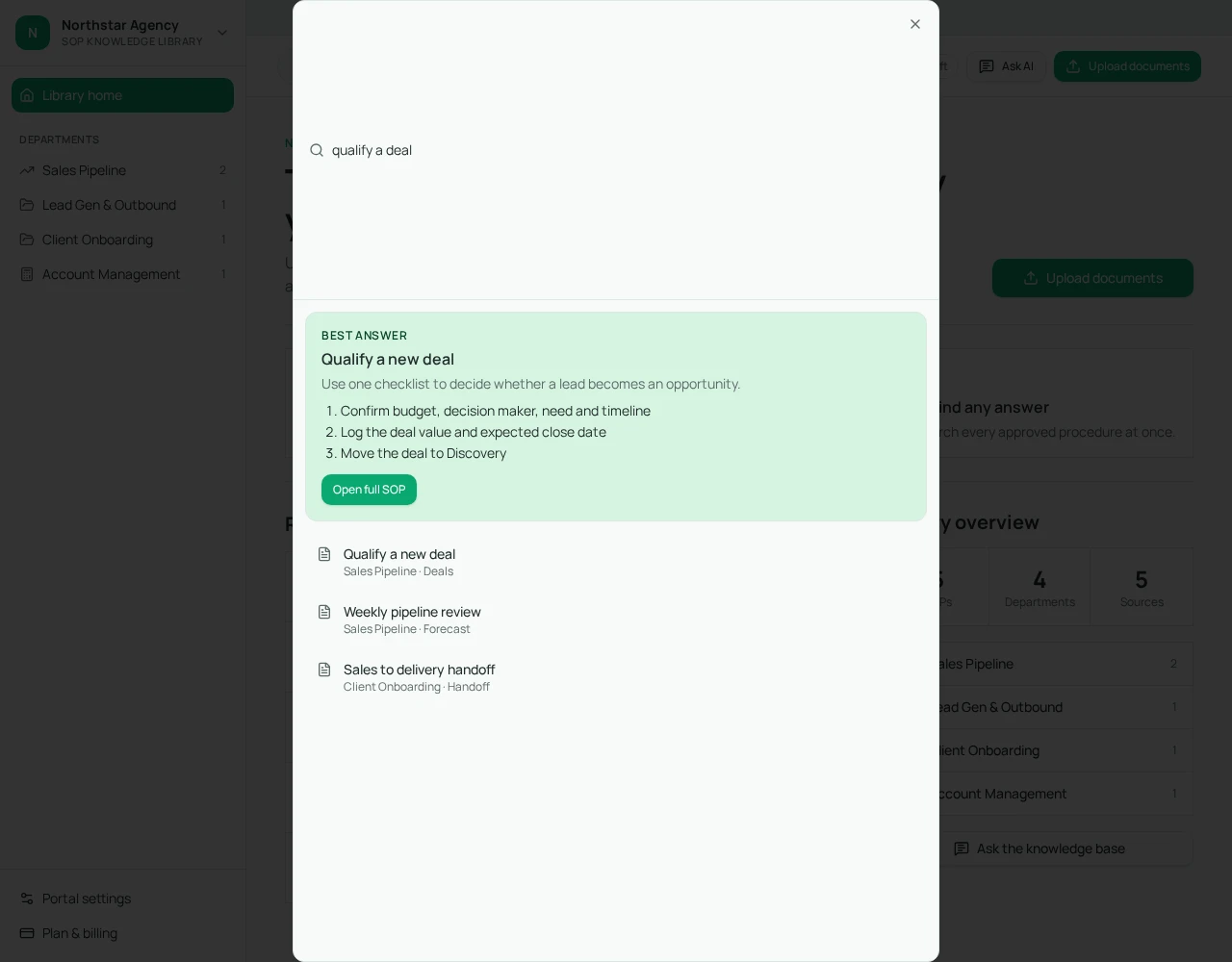
A migration fails if people keep opening the old folder. Make the new library easier: pin it in Slack, link it from project templates, and when someone asks a question, answer with a search link.
For remote teams, write SOPs so they work without a call: include the 'why', expected results, and what to do when something looks wrong. That is exactly what the verification and troubleshooting sections are for.
Frequently asked questions
- How long does a documentation migration take?
- For a 10–30 person agency, one department usually takes a few focused hours once files are gathered. Plan a week or two for the whole company.
- What file types can I import?
- Common document, spreadsheet, slide and text formats, plus Google Docs, Sheets and Slides from Drive. Unsupported files are flagged during the scan.
- Will AI publish anything automatically?
- No. Every imported document stays a draft until someone approves it.
Put it into practice
Clear your documentation graveyard
Scan a folder or connect Drive, review what Cloopp proposes, and approve a clean library in one sitting.
Explore free templates