
Team access
Contractor Training Without Giving Away Your Internal Workspace
Set up a focused contractor workspace, use member access, publish practical training, and check a sample deliverable before handing over external tools.

A freelance designer needs export standards and the review process. They do not need your finance procedures, other clients’ brand files, or permission to rewrite company SOPs. Contractor onboarding works best when the learning environment mirrors the access boundary. This workflow uses a separate Cloopp workspace, read-only member access, a focused course, and a manual delivery check; it does not pretend training automatically grants or revokes external permissions.
01
Decide what the contractor needs before inviting
List the actual assignment, duration, and required knowledge. A contractor producing social graphics might need the client’s brand rules, export dimensions, file naming, review expectations, and escalation contact. Remove unrelated content rather than trusting the contractor to avoid internal folders.
The important boundary is the workspace. Published modules and SOPs in a workspace are available to its members; department and folder names are navigation, not separate privacy controls. If the existing workspace contains material the contractor should not see, create a focused workspace instead of trying to hide it with a folder label.
02
Step 1: Prepare a contractor-ready library
Use an existing permitted client workspace or create a new one within your plan’s allowance. Check the active company name before importing anything. Include only current instructions and approved examples; exclude private discussions, pricing strategy, employee records, and passwords.
For a designer, create an SOP titled “Prepare social assets for review.” State the expected folder location in your file tool, required dimensions, naming convention, reviewer, and definition of ready. Cloopp explains the process, while your design and storage tools remain the places where the work happens.
Contractor-ready content checklist
Assignment: [deliverable and client]
Allowed workspace: [name]
Read first: Brand rules; Asset preparation; Review process
Course: Design partner — first delivery
Practice task: Export one sample asset
Reviewer: [role]
External access needed: [tool and permission]
End date and removal owner: [date / role]
03
Step 2: Invite to the intended workspace only
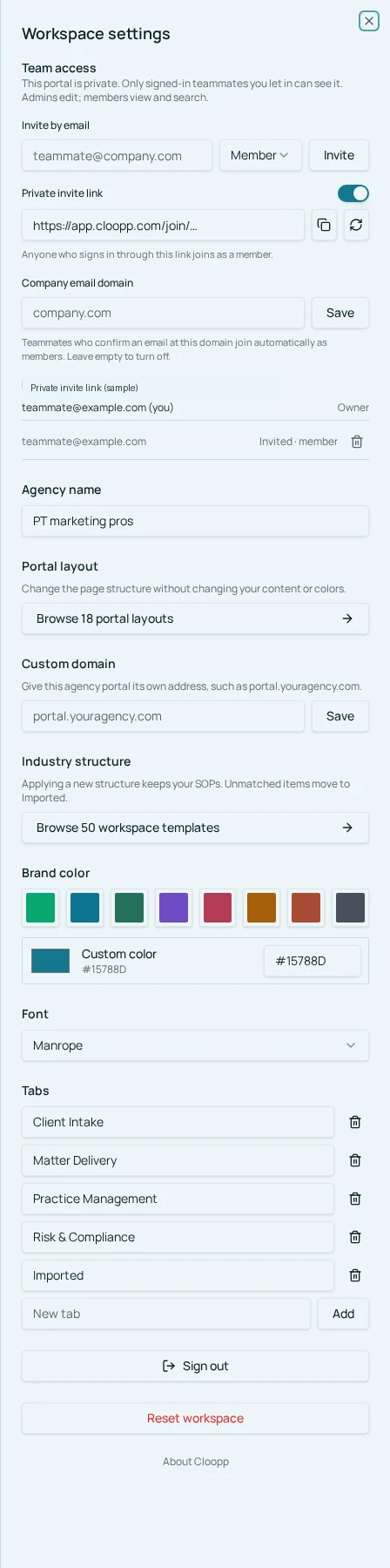
Open Portal settings → Team access as an owner or admin. Enter the contractor’s actual sign-in email and select Member. If Give access to is displayed, tick only the intended workspaces. Invitations apply per workspace; an internal teammate’s broader permissions should not be copied by habit.
Use an individual email invitation for deliberate access. If a private invite link or company-domain joining is enabled, review whether those join routes fit this workspace’s audience. Do not assume a contractor-facing name makes a broadly shareable link private in practice.
- 1Check that the workspace contains no unrelated client or internal content.
- 2Open Team access and enter the contractor’s sign-in email.
- 3Choose Member and select only the intended workspace under Give access to when available.
- 4Save the invite and explain which account the contractor should use.
- 5Have the contractor confirm the workspace name and visible material before work begins.
04
Step 3: Teach the first delivery and inspect the result
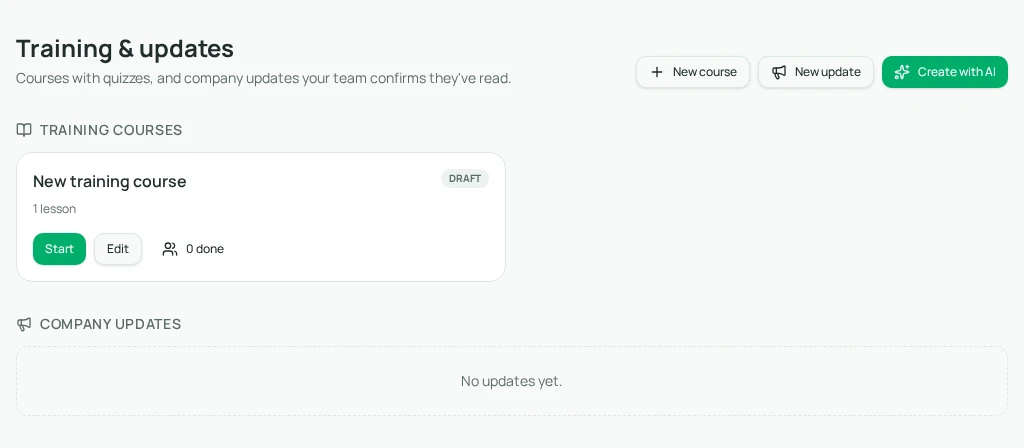
Create a short course in Training & updates with lessons on file preparation, review submission, and common rejection reasons. Publish it before sending the contractor to Start. Use a scenario such as “The client asks you to bypass the named reviewer; what do you do?” and teach the escalation rule in the lesson.
Inspect the contractor’s progress with the module’s “N done” control, then review a small sample deliverable in your normal production tool. A course uses the standard 70% quiz threshold; if your assignment requires every naming check to be right, verify the sample separately. There is no automatic course gate restricting access to SOPs or external software.
Before
- • Invite to the entire internal library
- • Explain standards in scattered chat messages
- • Discover missing knowledge on a client deadline
After
- • Provide a scoped workspace
- • Teach one repeatable first-delivery process
- • Review a low-risk sample before live work
05
Troubleshoot access and finish the engagement cleanly
If the workspace does not appear, compare the account used at sign-in with the invitation address. A personal account will not accept an invite to a different work email. If the course is missing, check publication in that same workspace rather than promoting the contractor to Admin.
If the contractor sees too much, inspect actual memberships and the content placed in the workspace. Move sensitive material to an appropriate internal workspace and review join routes. Do not rely on renaming a department as “Private.” Contractors also count toward the applicable member allowance, so check plan limits before a large onboarding batch.
At the agreed end date, remove workspace access and separately revoke design, file-storage, and client-platform permissions. Reset a shared invite link if needed. Record the handover in your normal engagement checklist: Cloopp membership removal does not revoke accounts in other services.
Frequently asked questions
- Can we hide one course from particular members inside a workspace?
- Published modules are visible to the workspace’s members. Use separate workspaces when the content audience needs a different boundary.
- Will finishing training unlock client tool access?
- No. A manager must grant and revoke external permissions through the relevant tools.
Put it into practice
Create a safer first-day contractor experience
Give the contractor only the knowledge they need, then use a focused course and a checked sample to start delivery confidently.
Explore free templates