
Company communication
Company Policy Updates: A Clear Announcement and Acknowledgment Workflow
Make changes understandable with effective dates, before-and-after examples, an acknowledgment record, and realistic follow-up steps in Cloopp.

Posting “the expenses policy has changed” in chat does not tell people which rule changed, when it applies, or what they must do differently. It also gives you no reliable picture of who has read it. A structured update solves the communication problem; acknowledgment helps you follow up. This guide shows how to prepare and publish a company update in Cloopp while keeping the record’s limitations clear.
01
Separate the announcement from the policy
The current policy is the enduring reference. The announcement explains the change from the previous policy. Keep both: somebody joining next month needs the full current procedure, while today’s team needs to understand the transition. An update that merely links to a ten-page document transfers the comparison work to every reader.
Choose an owner who can answer questions and confirm the wording. HR, finance, or legal approval happens through your actual company process; publishing in Cloopp is not a substitute for that approval. For contractual or regulated changes, get appropriate advice about notice and consent before distributing the announcement.
02
Step 1: Write what changes and when
Use five pieces of information: who is affected, the old and new rule, the effective date, the action required, and the contact for questions. Include a transitional example for work already in progress. This avoids the common ambiguity where a new rule appears to apply retrospectively.
For an illustrative expenses change, the company might reduce the amount that requires prior approval. State the exact currency and whether the limit applies per item or per event. Do not let readers infer those details from a headline. Our example uses placeholders because your policy—not an AI draft or blog—is the authority.
Copy-ready update format
Title: Expenses approval — effective [date]
Applies to: [teams and locations]
Previously: [old rule]
From [date]: [new rule with currency and unit]
Already-booked expenses: [transition rule]
Your action: Read the current SOP and confirm below
Questions: [owner and approved contact channel]
Current procedure: [SOP link]
03
Step 2: Create the update and check the reader view
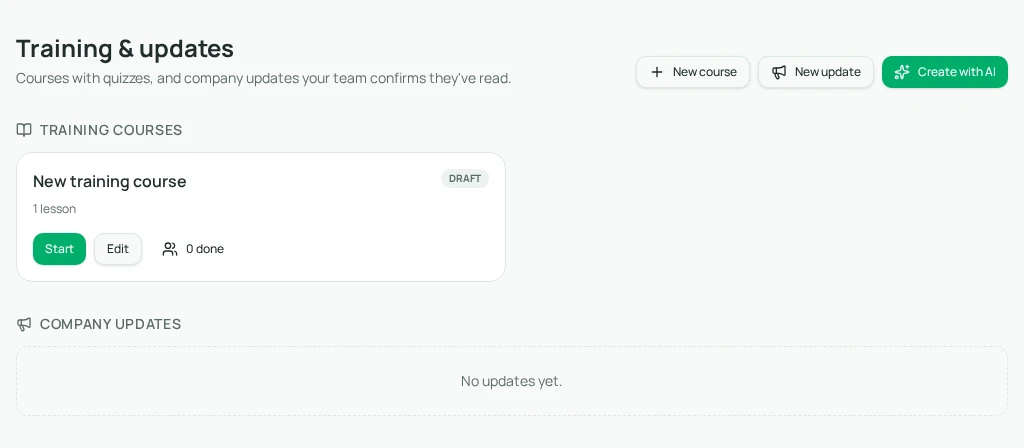
In Training & updates, New update starts a manual announcement. Fill in its title, summary, and content. Alternatively, Create with AI → Company update lets you supply a brief and optional source documents; Draft it costs one credit and keeps the result unpublished for review.
Read the final text as someone who did not attend the policy meeting. Check dates, amounts, links, and the difference between a recommendation and a requirement. Save before Preview so you inspect the saved version. Updates have acknowledgment rather than a quiz; use a separate training course when applying the rule needs practice.
- 1Confirm the active workspace and approved policy text.
- 2Open Training & updates → New update, or select Company update in Create with AI.
- 3Write the short summary and complete change explanation, including the effective date.
- 4Save, inspect Preview, and ask the policy owner to check the final text.
- 5Publish and send the module link through your normal internal communication channel.
04
Step 3: Follow up using the acknowledgment record
Members open the update with Read, review its content, and select “I’ve read and understood this.” Cloopp records acknowledgment under their own account. Ask people to raise unclear conditions before confirming rather than treating the button as an obstacle to dismiss.
Administrators can open the “N done” control on the module card to inspect people, status, and date. Use the list for proportionate follow-up. A person marked Not started may be on leave, may lack workspace access, or may never have received the announcement link. Ask before treating missing progress as refusal.
Before
- • A vague chat announcement
- • Readers guess when the rule begins
- • Managers repeatedly ask whether it was seen
After
- • A dated explanation of the actual change
- • One current policy reference
- • A per-account record supporting manual follow-up
05
Handle corrections and meaningful changes carefully
If a member cannot find the update, verify publication and their workspace membership. If a video is part of the explanation, use a supported hosting link and provide the core information in text so viewing restrictions do not hide the policy. Cloopp does not automatically send acknowledgment reminders; use your normal follow-up channel.
Do not assume editing an acknowledged announcement causes everyone to acknowledge again. For a material revision, publish a clearly named new update describing what supersedes the old one. This keeps the new communication distinct instead of making an old read record appear to cover different content.
Keep the enduring SOP synchronized with the final rule and test the changed process once. The communication loop is complete when readers know where the current rule lives and the owner can explain how unresolved questions were handled—not merely when every row is marked Read.
Frequently asked questions
- Will Cloopp automatically remind unread teammates?
- No automatic reminder workflow is available here. Administrators inspect the module’s people view and follow up manually.
- Should a complex policy change be an update or a course?
- Use an update to communicate and acknowledge the change. Add a course with scenarios when the team must learn a new decision or task.
Put it into practice
Publish a change people can understand
Write the difference, date, required action, and question route before asking the team to acknowledge it.
Explore free templates